
Stopping and starting services within windows is quite easy. From the command line you can simply type:
net stop to stop a service
or
net start to start a service
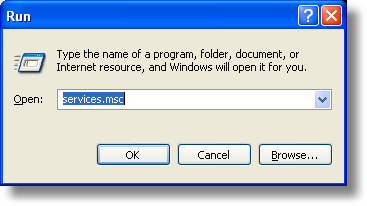
Or even easier, open the service manager by clicking on start, run and then type ‘services.msc’ and click OK
A complete list of services is displayed:
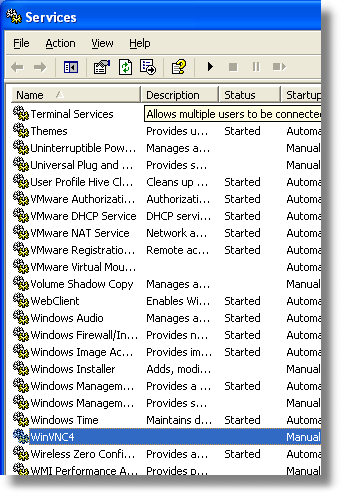
Now you can right click on the service you would like to modify, and start or stop it using the respective menus.
The tricky part is when you need to stop the same service on 400 machines across your LAN. That could be a real pain. What if, for example, a critical flaw was found in VNC and you wanted to quickly stop it on every machine within your network?
The first question we need to ask: How can we stop or start a service remotely?
One way is to use the GUI. The service manager I showed you before can connect to a remote computer. Using this method it takes three clicks and about 45 seconds. 45 Seconds x 400 machines = about 5 hours of lots of clicking.
We definitely want to use the command line for this one.
Microsoft has a utility in the resource kit for Windows XP professional named (sc.exe)
It follows this syntax:
sc.exe computername action service_name
It lets you start and stop services of a remote computer from the command line. Now we are on the right track. Still…I don’t like the way this program operates. The major feature it is missing is authentication. I want to provide a username and password all in the same command line tool.
I took the liberty to create such a tool. (Free) It can be downloaded from here
It follows this syntax:
RemoteService.exe HOST ACTION SERVICENAME [USERNAME] [PASSWORD]
Possible actions are: STOP, or START
Username and password are optional.
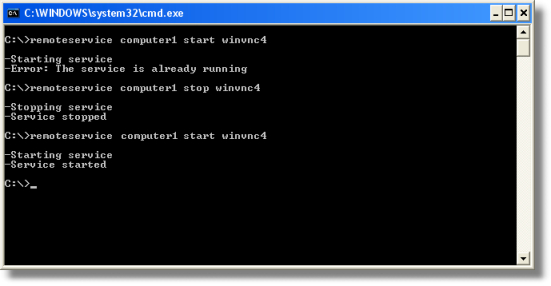
Here is what it would look like if we used it to start and stop WinVNC on a computer named Computer1
Now. How do we automate this to stop or start a service on *every* computer within a domain? Simple: We create a VB script that will do it for us.
You can download it from here (Right click, and Save As…)
Here is how it works:
It gets a list of all the computers within the domain you specify. Then it executes our RemoteService.exe with the appropriate command line parameters. RemoteService.exe then returns an exit code, which we use to display the result.
Here is the syntax for the script
RemoteService.vbs Domain Action ServiceName [UserName] [Password]
Action can be either STOP, or START
Again, username and password are optional
I suggest using the cscript.exe VB Script interpreter to invoke it, otherwise you will get a message box for each machine that it processes.
Lets see an example use of the script. Lets say I want to stop WinVNC on all machines within the IntelliAdmin domain:
cscript.exe RemoteService.vbs IntelliAdmin Stop WinVNC
(Make sure RemoteService.vbs and RemoteService.exe are in the same folder)
Another question that pops up is: What is the appropriate service name for use on the command line?
This is a good question. If we go back to our service list that we viewed before (By Launching services.msc) We can double click on any of the services. Now a property window will be shown.
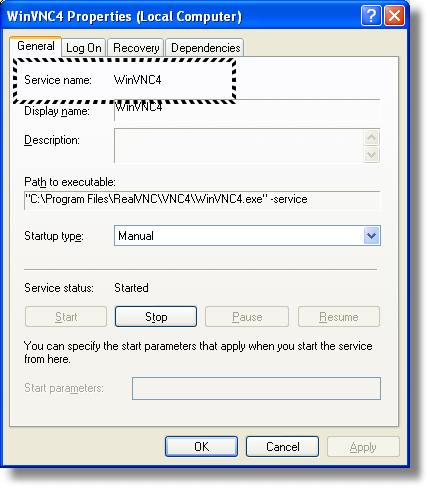
The “Service Name” is what you need to use when invoking the script. It sometimes can be confusing since the name of the service displayed in the GUI can be totally different than the name you can use within the command line.
That’s all there is to it. Now with only one line in the command window you can stop or start a service across your entire domain.
One more thing…Subscribe to my newsletter and get 11 free network administrator tools, plus a 30 page user guide so you can get the most out of them. Click Here to get your free tools
{ 15 comments… read them below or add one }
I have problem with remoteservice.exe
I can’t run the exe.
when I double click on it, a quick cmd page pop up and disappear and then when i use cmd typing the command remoteservice.exe, the cmd says it is not recognized.
any commands??
Steve Says: You need to download it to a location you can access from the command line, then you can type remoteservice.exe with the arguments I described above
I did what you instructed me and it worked, thanks
but when i execute the command, it processes and then it gives me
-stopping service
-Error: Access Denied
what should i do to overcome the error??
You need to have administrative access to the machines you are trying to access – run it from a domain administrator account
I have the administrative access but i found out that the service is disabled
when i change the starting status to automatic then i can start the service using your tool.
how would I change the starting status to automatic so i can your tool??
You would need to use something else to do what you want.
You could use Network Administrator to do both:
http://www.intelliadmin.com/NetworkAdministrator.htm
First, set it to manual or automatic
Then start the service – much easier than the command line tool.
Look for the “Services” plugin to get you started.
Thank you for the information. The remoteservice.exe works well and has saved me some headaches.
Hi, This looks like just what i’m looking for. I looked at the vb script. I’m not familiar with scripting. Where do I enter all the computers in the script?
Thanks,
The remoteservice.exe gives the following error.
C:\Documents and Settings\PC1\Desktop>remoteservice.exe Servername
stop administrator password
-Authenticating with \\Servername
-Error: Could not connect to remote host
Thank you very much for this super useful script.
One thing I have noticed is that this runs great on my XP and 2003 systems but it has issues when it attempts a Windows 7 system. I know this was written in 2006 but have you possibly done any revisions for this? or is there possibly a newer tool I should be using?
Thanks again,
-Jay
Thanks for the tool.
it saved a lot of time for the help desk folks who forgot to enable one of the services in the images.
I created a script and with GPO they were very happy.
Great little script an so easy!! Thanks a lot!
Hello,
When a attempt to run your script as recommended I get the following error:
\scripts\RemoteService.vbs(22, 2) WshShell.Exec: the system cannot find the file specificed
I apologize that the article is not really clear about what is needed to make the script run…but you need this file in the same folder as the script:
http://www.intelliadmin.com/RemoteService.exe
Once it has that, it should work for you.
Thanks,
Steve
Hello – the remoteservice.exe tool looks great, but I cannot use it due to access denied errors. I am trying to authenticate with a domain account and a local account..neither are working.
My syntax is as follows
remoteservice MYSERVER stop Print Spooler.
It will then try to authenticate and give me the access denied. I put in a username and password which I know to be an existing domain and local account..neither work.
remoteservice MYSERVER stop Print Spooler administrator password
Any ideas?
Hi Kyle,
This program is showing its age…these days you can use the built in SC command to do the same:
sc \\MYSERVER STOP Spooler
Thanks,
Steve