
Hotmail is one of the biggest free email providers on the internet. They were around way before gmail was even a thought in anyone’s head. The one thing I notice is that when people start to use Microsoft Outlook they really miss its features when they use web based email.
Other free email providers like gmail provide a POP3 connection that allow programs like Microsoft Outlook receive mail from your free account. POP3 is a protocol that is widely supported by just about any email client on the net. I don’t think Microsoft ever allowed this with Hotmail. It is clearly a marketing decision. Many people just stop there. It is easy to assume that if there is no POP3, there is no way to get the email from another program.
A part of that marketing strategy is a plugin within Microsoft Outlook that is specifically designed to allow you to access your hotmail account. It is really quite easy to add.
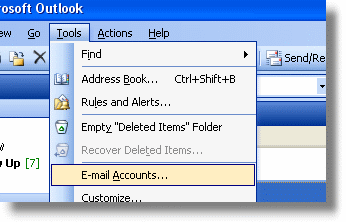
Open up Microsoft Outlook, and click on tools then E-Mail Accounts
In the email section of the displayed form, check the item that says “Add a new email account”
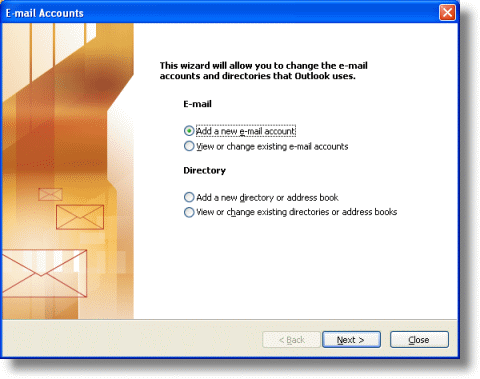
Click next. Now you are shown a list of account types:
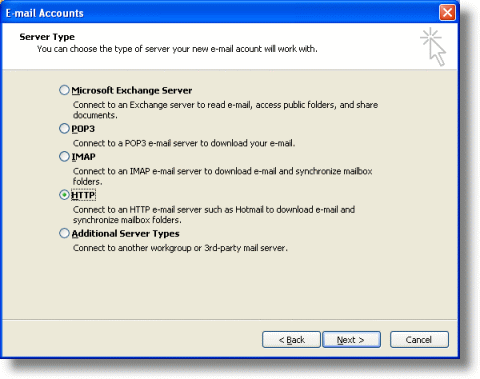
Select the HTTP server type and click next again
Enter all of your account information. Make sure the HTTP Mail service provider is set to Hotmail, and fill out your hotmail email address, login, and password.
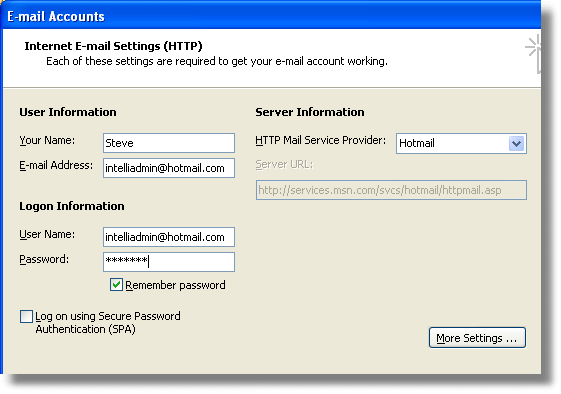
Click next and you are finished!
Now in Microsoft Outlook you will see a new item named Hotmail – that is where all of your Hotmail messages will be located.
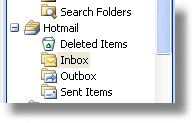
That’s all there is to it! Now you can easily read your Hotmail from Microsoft Outlook.
One more thing…Subscribe to my newsletter and get 11 free network administrator tools, plus a 30 page user guide so you can get the most out of them. Click Here to get your free tools
{ 11 comments… read them below or add one }
That was excellent, thanks for that. I was unaware that outlook would accept http based webmail, this saved me having to look at registering on a POP3 or IMAP on another server under a new domain name.
Cheers!
I tried this but when I go to SEND it says Access denied although I can tie POP3 to my Hotmail and send/receive there. Any thoughts please?
I tried this but outlook will not synchronize with hotmail yet. Any ideas????
I think things have changed. This article was written in 2006. I believe that MS has totally re-written their hotmail service, and now you have to subscribe to get this functionality.
I strongly appreciate this command Mr.Steve Wiseman wish you further success.
Thanks & Best Regards,
Samiullah Rahimi
Helmand, Afghanistan
I did this but when I go to send I got “Hotmail-Sending’ reported error (ox800ccc33), says ‘Access to the account was denied. Verify that your usernsme and password are correct. The server responded ‘Forbidden’.’ Any thoughts please?
this was very helpful thank you!
Helpful. Thanks.
this doesnt work with Outlook 2007, right?
I tried this with Office 2003, return error code 0X800CC0D. Any ideas please?
Hello Cheryl,
I believe that the process has totally changed (this article is almost 6 years old) Also…I think you need the paid version of hotmail now to use it with outlook.
Thanks,
Steve