
Remote Desktop is a great feature built into Windows. Sometimes it is nice to have it listen on a different port. I like to get my Remote Desktop to listen on port 443. This is because many hotels, and cafe wireless networks block all ports except 80, and 443. These are the two ports used when surfing the web.
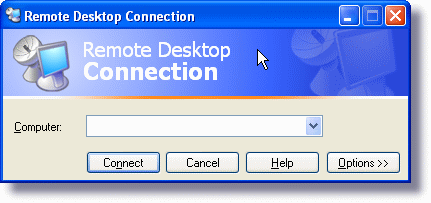
443 is the important one. Since these networks assume that it is encrypted web traffic they usually do not attempt to do any filtering, or caching. Making it a perfect transport for Remote Desktop.
The first important thing to remember is that you can’t change to a port that is already in use. If you are hosting a webserver on the same machine, you will need to make sure that there are no secure sites (Ones listening on 443). Otherwise you will have a conflict – either the remote desktop service, or the webserver service will have problems starting. It just depends on which service starts first.
So no secure sites. Checked. Now lets see what we need to do to change our listening port. We need to dive into the registry to make our change (Free program to do it for you later in article if you hate doing that)
HKEY_LOCAL_MACHINE
System\CurrentControlSet\Control\Terminal Server\WinStations\RDP-Tcp
There is a dword value named PortNumber
Update this value with the new port you would like to listen on. In our case it is 443
And reboot.
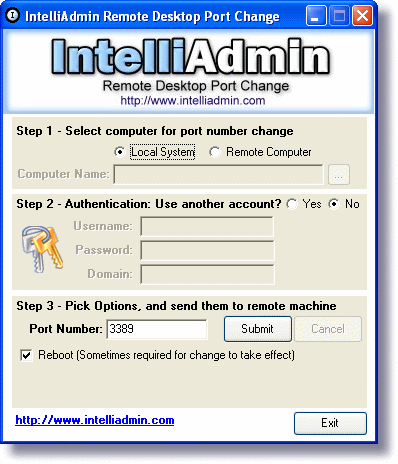
If you hate messing with the registry we have a program that will do it for you, and even change it on computers across your lan:
Now that you have rebooted how do you connect at the new port?
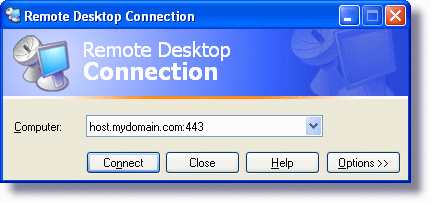
Easy. Open the remote desktop client and type [hostname:portnumber]
So if we wanted to connect to host.mydomain.com on port 443 it would look like this:
Now you can get to your machine from almost any network.
One more thing…Subscribe to my newsletter and get 11 free network administrator tools, plus a 30 page user guide so you can get the most out of them. Click Here to get your free tools
{ 1 comment… read it below or add one }
tanx for your guide.
just one question!
we should change RDC port on host computer or on guest computer (or both)?