
I was looking for a tool to resize the primary partition on my Vista workstation…you know something like Partition Magic but with the shiny “Works With Vista” logo?
Only after a few searches I discovered that Microsoft has baked into Vista automatic partition resizing.
I was very skeptical at first, and I worried that it might bomb out and destroy everything…so I made sure I backed up my system. From past experience I expected the resize would take hours. Amazingly it only took about 90 seconds to split my drive in half.
I will walk you through the process…I am going to go through every step for those who have not used Vista yet can easily find their way.
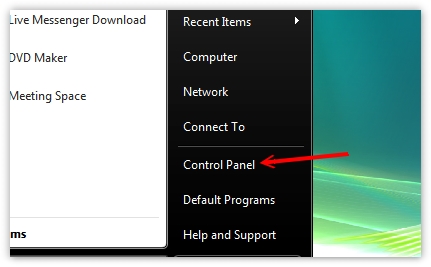
Click on start, then control panel
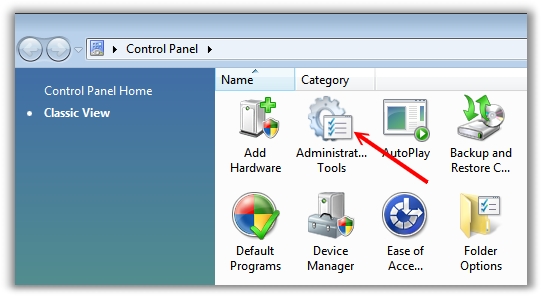
The control panel will popup and you will want to look for the administrative tools icon. (You will need to click on the classic view button on the left to see it). Double click it.
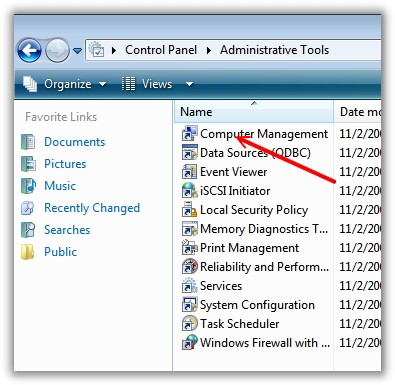
In the administrative tools window you need to find “Computer Management” Double click it.
Now that you have computer management open, look down the list on the left. Click on “Disk Management”. Now look at the top middle part of the window. Find the disk you want to resize and single click on it. Once you have done this a list of volumes on that drive will appear below.
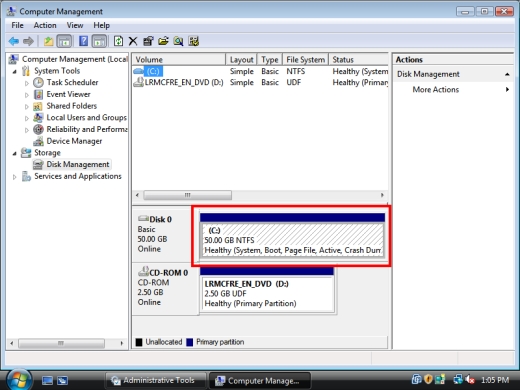
Right click on the volume you want to resize and you will be given the option to shrink or expand it. If an option is grayed out it means you either cannot shrink it any smaller, or cannot expand it any larger.
I decided I wanted to shrink my drive in half. (Well almost)
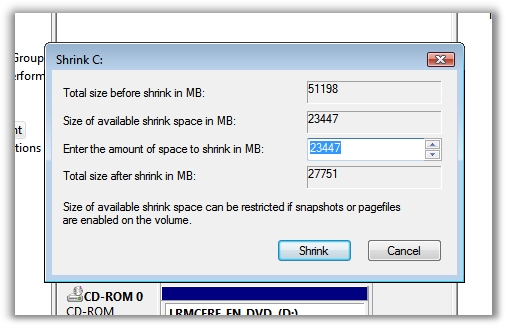
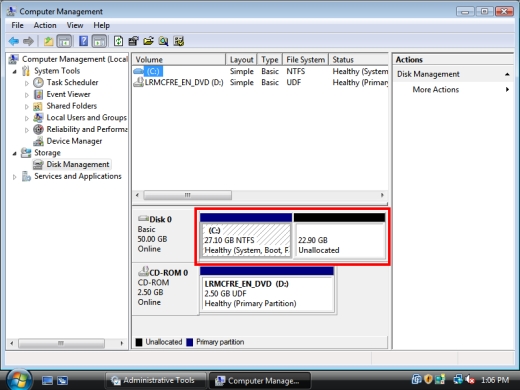
When it is shrinking there is no progress…so just sit and wait for it to do its thing. It took about 90 seconds on my system…and bam it was resized
One more thing…Subscribe to my newsletter and get 11 free network administrator tools, plus a 30 page user guide so you can get the most out of them. Click Here to get your free tools