
Microsoft has included file compression with windows since Windows 2000. I am not talking about the built-in zip compression either (That actually started with XP). What I am talking about is the silent folder and file compression that works on the fly with the NTFS file system.
If you have never used it…you may have seen a folder or file in windows that looks like this (If you are using XP or 2003):
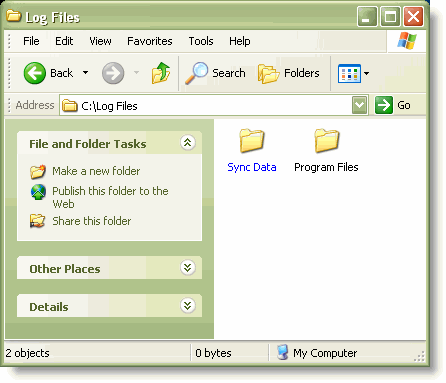
See the blue folder? The blue means the folder is compressed. Windows 2000 doesn’t have any visual indicator. You can find out by going on the advanced attributes tab of the folder or file’s properties…like the one below
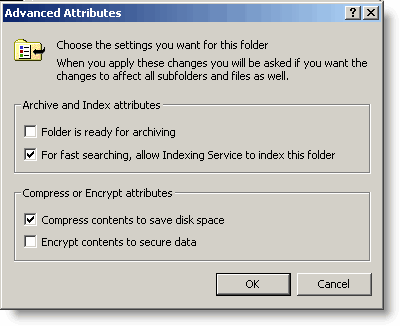
And the “Compress this folder..” checkbox is checked, so I know that compression is turned on for this folder.
Now back to the original title of my article “Compress files automatically”. I have a script that runs every night, and it generates a large log file. The log has a list of all files that I backup, and other synchronization info. Since it runs each day it can start eating up space rather quickly.
I wanted a way of compressing only the new files I created, but still leave the files in the same folder alone. This is actually very easy to do.
You can compress a file or folder by calling the compact command from the command line or a batch file. Here are all of the possible arguments for this command:
COMPACT [/C | /U] [/S[:dir]] [/A] [/I] [/F] [/Q] [filename […]]
/C Compresses the specified files. Directories will be marked
so that files added afterward will be compressed.
/U Uncompresses the specified files. Directories will be marked
so that files added afterward will not be compressed.
/S Performs the specified operation on files in the given
directory and all subdirectories. Default “dir” is the
current directory.
/A Displays files with the hidden or system attributes. These
files are omitted by default.
/I Continues performing the specified operation even after errors
have occurred. By default, COMPACT stops when an error is
encountered.
/F Forces the compress operation on all specified files, even
those which are already compressed. Already-compressed files
are skipped by default.
/Q Reports only the most essential information.
filename Specifies a pattern, file, or directory.
Used without parameters, COMPACT displays the compression state of
the current directory and any files it contains. You may use multiple
filenames and wildcards. You must put spaces between multiple
parameters.
To compress my log file I simply needed to add one line to my script:
REM -Custom log generating program that I run
REM -you would have something of your own here
GenerateAccessLog.exe > %1
REM -Here is where the magic is…simply compress the specified file
REM -The specified file is the first argument supplied to the batch file
compress /c %1
Since log files compress nicely…they now only eat up 1/10th of the space.
One more thing…Subscribe to my newsletter and get 11 free network administrator tools, plus a 30 page user guide so you can get the most out of them. Click Here to get your free tools