
I have been playing around with the open source utility TrueCrypt.
What is it?
It is encryption software that can:
-Create a virtual disk within a file and mount it as an actual drive letter
-Encrypt an entire hard disk partition or a storage device such as USB flash drive.
-Provide encryption that is real time and transparent.
There are two main ways to create an encrypted disk. You can encrypt an entire disk, or you can create a virtual disk within a file.
The first method has its risks, since converting a drive will erase everything that is on it. The second method is great for experimenting – you simply create a file somewhere on your hard drive and map it.
I downloaded the latest version and installed it on my system. Within 5 minutes I was able to create an encrypted volume and start using it. The beauty is everything is contained in a single file. That way you can easily move it around your network, or put it on a flash drive.
There are lots of options that the program offers, and it can be confusing the first time you look at it. I will save you time and walk you through creating an encrypted volume and map it to a drive letter.
Start out by downloading the latest version and extract the zip file.
Run the setup, and just use the defaults
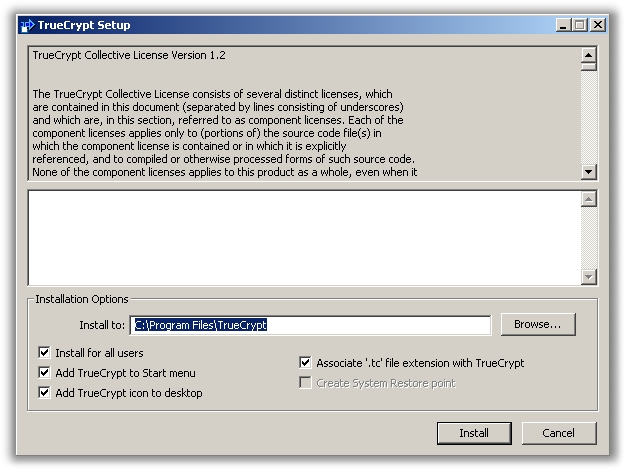
After you have installed it, you will find a TrueCrypt icon on your start menu. Launch the program and you will be shown a list of drive letters. We want to create a new volume, so click on ‘volumes’, and then the option ‘create a new volume’
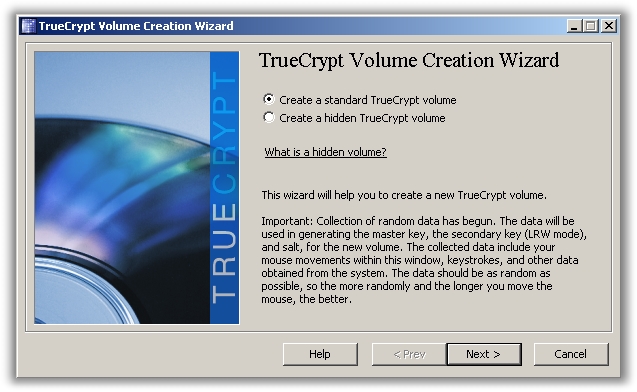
The first option you see is one of the coolest features TrueCrypt offers – Hidden volumes.
A hidden volume can be created within the free space of an existing TrueCrypt volume. It has its own separate file system and password. This way you can put ‘fake’ important files on the visible volume, and the real stuff on your hidden volume.
When forced to give up the password you simply reveal the visible volume password….and according to TrueCrypt there is no way for anyone to determine if a hidden volume exists, or if it is random data in the empty space.
I will leave creating a hidden volume as an exercise for the reader – lets move forward and create a standard TrueCrypt volume and click Next.
I have to admit, the interface here is confusing. To create a new volume file you click on the button that says “Select File”…you are not selecting any file. You simply browse to the folder you want to create your volume file and type the name.
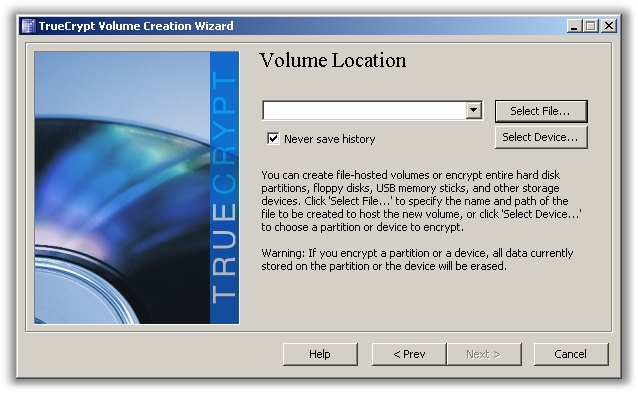
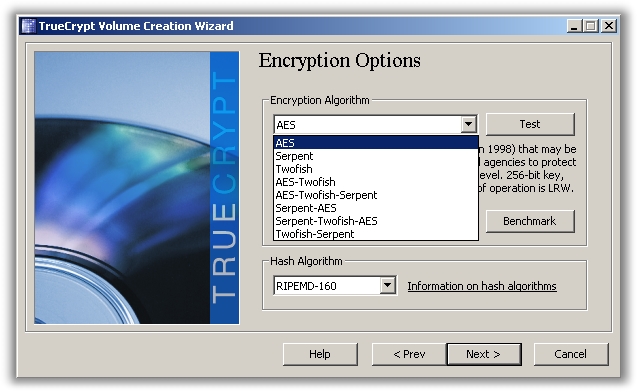
After you have selected the location and name of your volume file (I suggest using the extension .tc) Click next, and pick the encryption type of your choice. If you don’t know what to use…then stick with AES. It is sufficient for most applications.
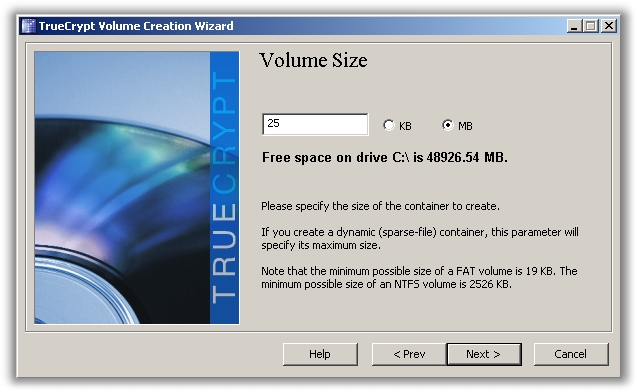
Pick the size of your encrypted volume…and click next
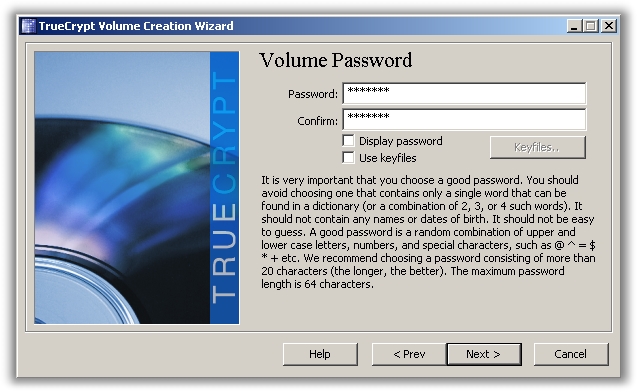
Most important part – pick your password for the volume. Don’t forget it…if you do it will be hard if not impossible to get your data back.
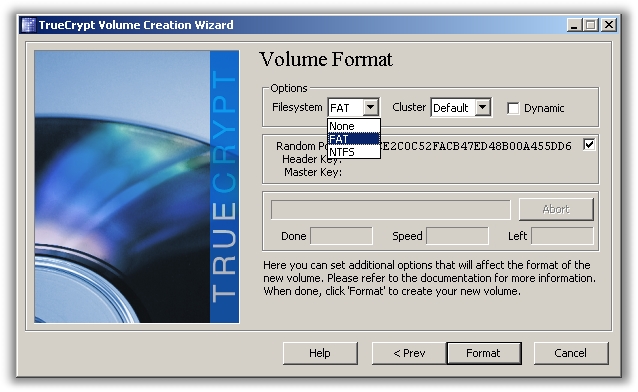
Pick your file system type and click format. I picked NTFS so I could set permissions on the files and folders within it. You may want to stick to FAT if you need to access the same files on older systems, or Linux.
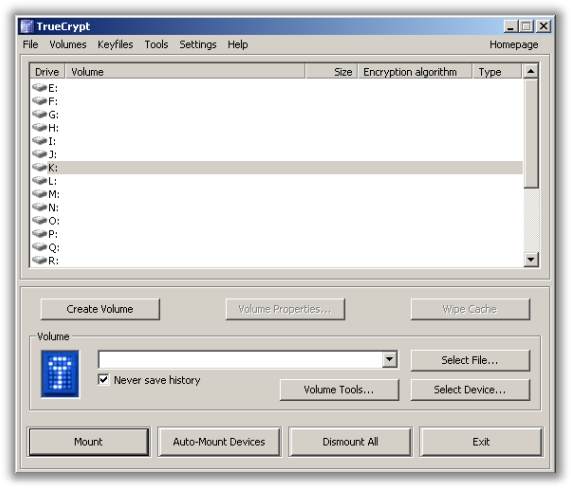
Now that you have formated the volume you can click on exit. Now select the file for mapping. You can do this by clicking on the ‘select file’ button on the bottom right. Browse and find the .tc file you created earlier.
Pick a drive letter above by clicking it once, and then click the ‘Mount’ button
It will ask you for a password
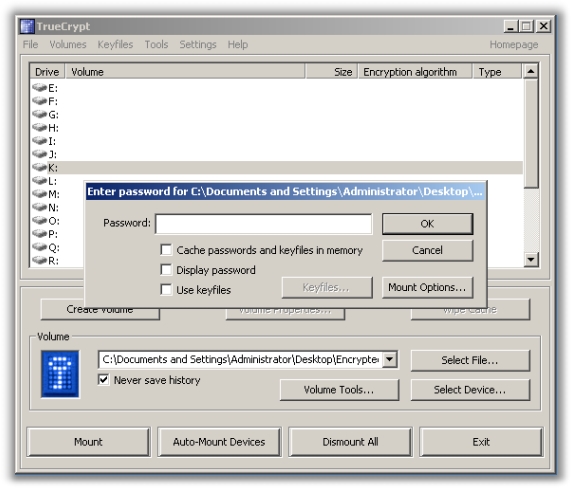
And now your encrypted volume is mapped
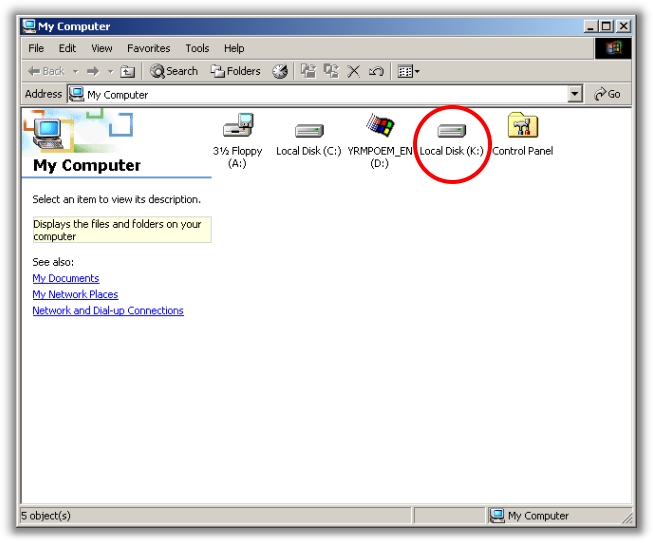
You can use the new drive like any other – but with this you can keep your data safe and still carry it around on a USB drive.
One more thing…Subscribe to my newsletter and get 11 free network administrator tools, plus a 30 page user guide so you can get the most out of them. Click Here to get your free tools