
All emails that come from customers are tagged by our server (It actually looks up email addresses from our order info database), and sent to a special email address. That way we can get to a customer’s email as fast as possible. Unfortunately it is difficult to keep checking a separate accounts, so most of the time we have it go to our regular account – but have outlook flag it with a different color.
This works great unless we are in a heavy coding session and don’t check our email for hours…only to find out a customer had an urgent issue that needed to be answered right away.
I have found a simple solution. Turn off the standard audio alerts in Outlook, and create a custom rule that looks at the ‘TO’ field. When Oulook sees a message with the matching address it will play a special wav file that you have picked.
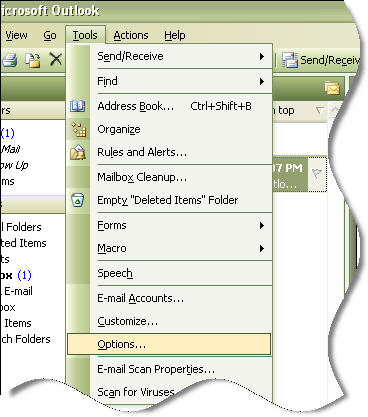
How do you do it (This is for Outlook 2003)? Well first lets turn off the standard alert. Click on Tools, then options.
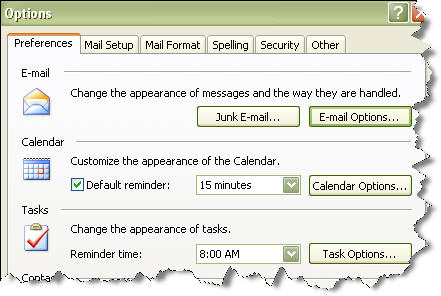
The options window will be shown. On the first tab, click on the “Email Options” button.
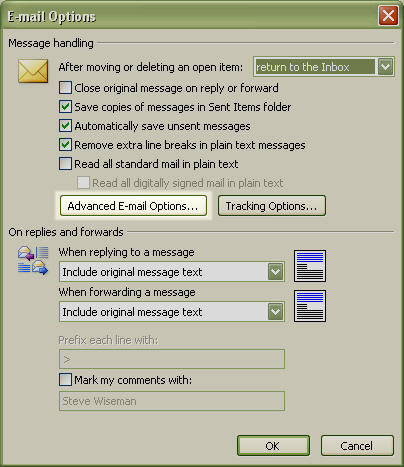
We will need to drill down ever further. Click on “Advanced Email Options” on this form.
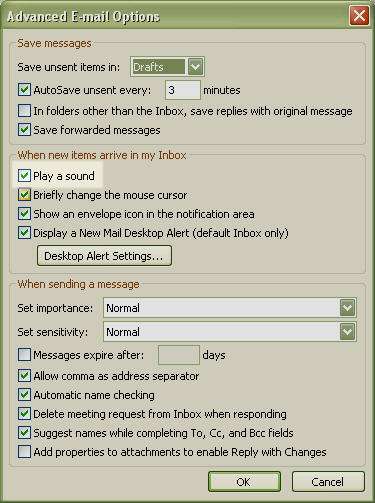
So now we have it. Un-check “Play a Sound” on this form, and keep clicking OK until all the forms are closed
Ok. So now our alerts are disabled. Lets setup a rule to have it play a special sound each time we receive an email for Customer.Support@intelliadmin.com
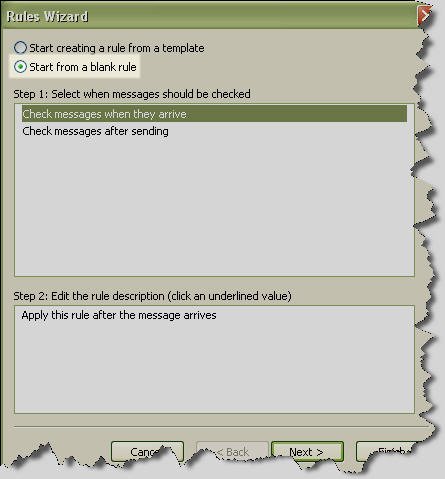
Click on tools, then “Rules and Alerts”. When the form appears, click on “New Rule”. We want to create a custom rule, since none of the predefined rules will work for us. Yes – we want to check messages when they arrive. Click Next
Scroll down and find the rule that says “Sent to people or distribution list”. And actually, you could create any rule you would like…look for a subject line, or a specific sender. Whatever you would need a special alert for.
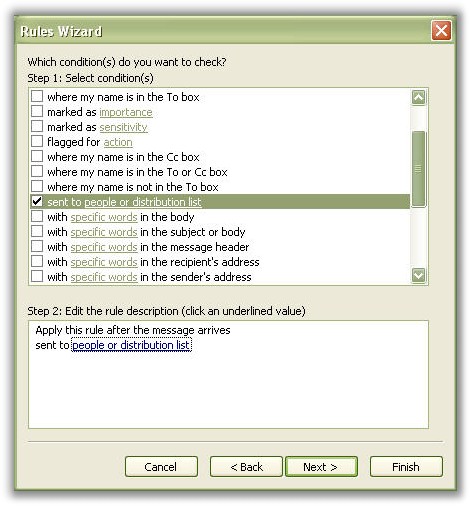
In this case I setup the rule by clicking on the underlined “people or distribution list” at the bottom. Then I just typed in Customer.Support@intelliadmin.com. Click Next
Scroll down and find the option that says “Play a sound”
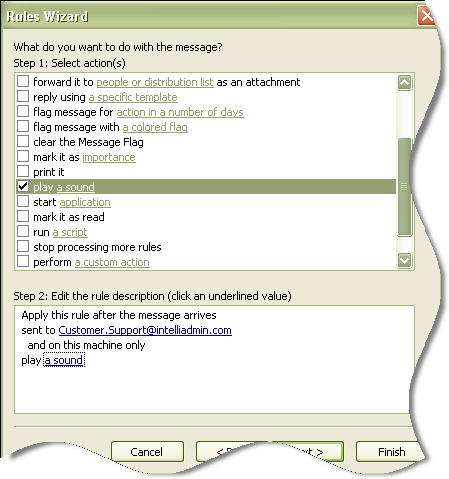
Click on the underlined “Play a sound” and you can select the sound you would like to play when the rule is matched.
Click next past the exceptions page (Unless you want to add an exception to this rule) and click finish.
Now an alert will only chime when someone sends mail to Customer.Support@intelliadmin.com
One more thing…Subscribe to my newsletter and get 11 free network administrator tools, plus a 30 page user guide so you can get the most out of them. Click Here to get your free tools