
One of the things I like about Exchange is its ability to retain messages – even after you delete them.
One way you really can be a hero in IT is to restore that very important message your boss “Stored” in deleted items (See note at bottom)…and then accidentally emptied the folder.
Worse yet, is the person that comes to you much later – realizes that they really need an email they deleted two weeks ago.
Within Exchange 2003, there is an automatic 7 day retention of deleted items. I suggest changing this to 30 – and it doesn’t require a lot more space for your average user.
You can do this by opening the Microsoft Exchange system manager, and drilling down to the mailbox store. Right click and go to properties.
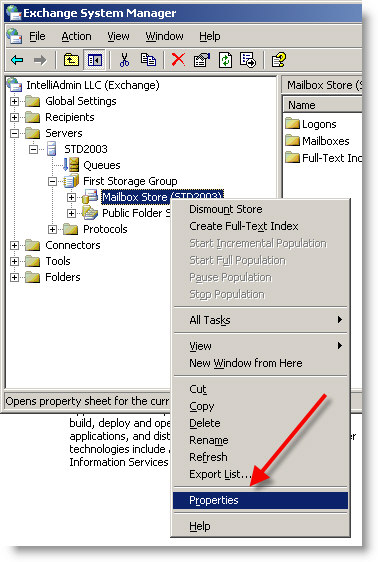
A window will pop up. Move over to the limits tab.
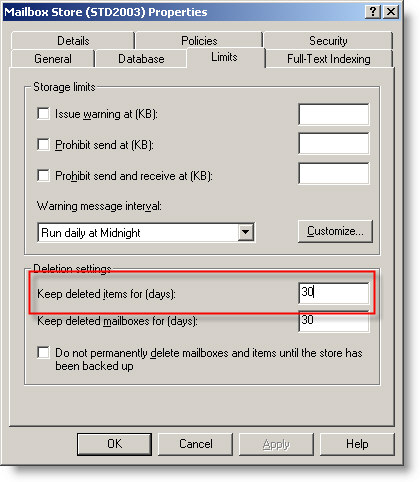
See the part I highlighted? Change it to a time frame that is appropriate for your network. Keep in mind it will take up space as if that amount of time had past without deleting anything. So please be careful if your are running at the edge of your space requirements.
Now. You have updated the time…user calls and says “Oops I deleted a message…can you get it back?” How do you get it back?
Get on the users machine, open Outlook. Select the deleted items folder on the left. Then click on tools, and move down to the “Recover Deleted Items” menu item
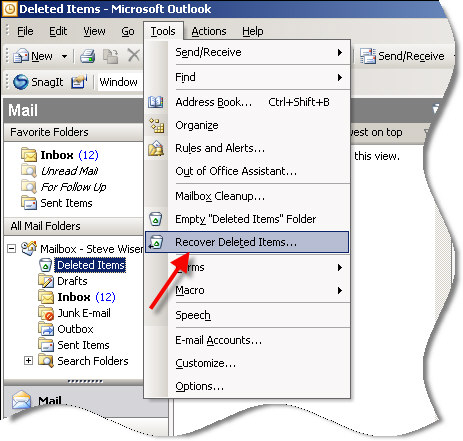
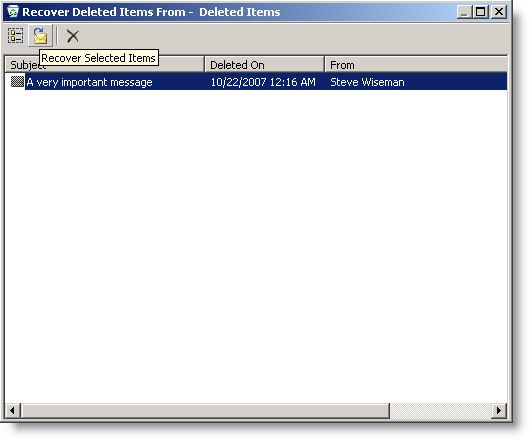
When you select it, a window will popup with a complete list of deleted items you can recover
Now here comes the part that you will only learn from experience. If you are running Outlook 2003 Pre SP1 – cached mode will prevent it from working at all.
This means if after the fact, after the item was deleted you discover you had cached mode turned on, and SP1 was not…you have lost the messages.
I learned this the hard way when I thought I could save the day, only to find out the messages were hosed by a bug with cached mode in the original release in Outlook 2003.
So the lesson is, make sure you either disable cache mode, or install the latest service pack for office, and message recovery will work beautifully.
It sure beats pulling out tapes from the safety deposit box every time someone deletes an important message.
*Note: Yes, I actually had a user that stored their important messages in the deleted items folder. They had no idea that it purged mail after sometime and were really surprised when their important messages were gone.
One more thing…Subscribe to my newsletter and get 11 free network administrator tools, plus a 30 page user guide so you can get the most out of them. Click Here to get your free tools