
I have a few different servers I remote into all the time using Microsoft Remote Desktop. One of the big problems I have is that I use a wireless phone to connect, and often the Remote Desktop session is lost in mid stream.
After a few reconnects, and lost connections you will get this error message from Windows:
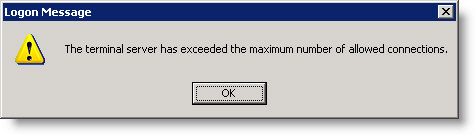
That can be a big problem if you need to get on right away, and no one is near the machine to disconnect your orphaned sessions.
Today I got tired of it, and decided to see what my options were. From my research the best way to solve this is to limit each user to only one session. That way, when I attempt to reconnect it will simply disconnect any active or inactive session and give it back to me.
To do this you need to get to the Terminal Services Configuration. You can do this by clicking on start, then Administrative Tools, and then Terminal Services Configuration
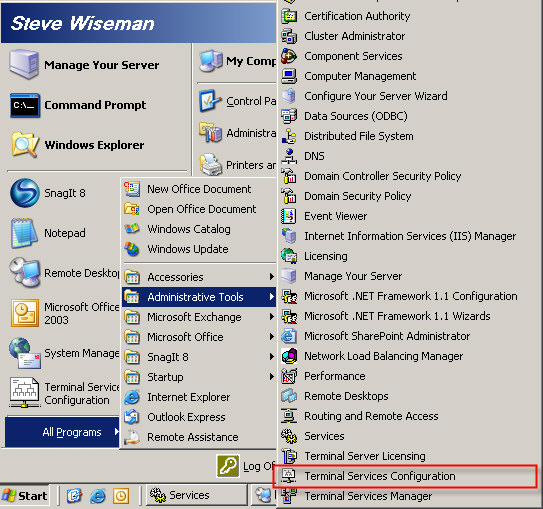
If you are running Windows XP, and not 2003 server, you may need to drop to a command line and type tscc.msc to launch this program.
Once you have it open, click on the left item named “Server Settings”. On the right you will see a few options for the server:
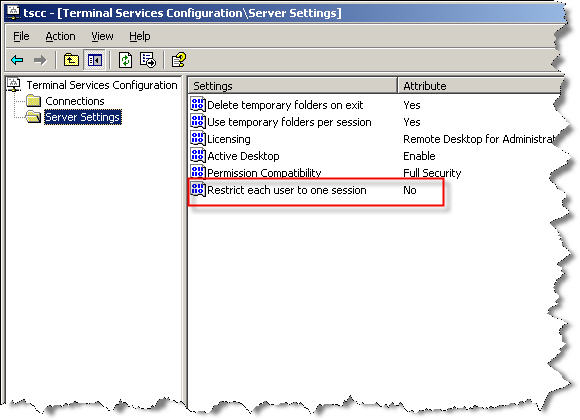
We are interested in the option that says “Restrict User to one session”. Double click on it, and check the item that says “Restrict each user to one session”
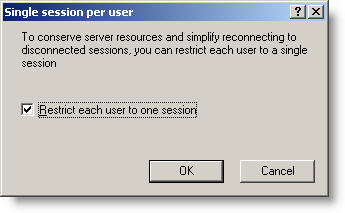
After you reboot, you will no longer have to worry about too many connections to your terminal server (From the same account).
One more thing…Subscribe to my newsletter and get 11 free network administrator tools, plus a 30 page user guide so you can get the most out of them. Click Here to get your free tools