
I received a note from a reader yesterday:
I saw your post (below), but didn’t see a way to make this screen appear. Can you tell me how to access that screen?
He is talking about this post:
http://www.intelliadmin.com/blog/2006/12/adobe-releases-acrobat-reader-8.html
I went back and read the article and realized that this settings page is very difficult to find within Acrobat Reader 8.
Here is how you can get to these settings. Open up Acrobat Reader, and click on Help then “Check for updates”
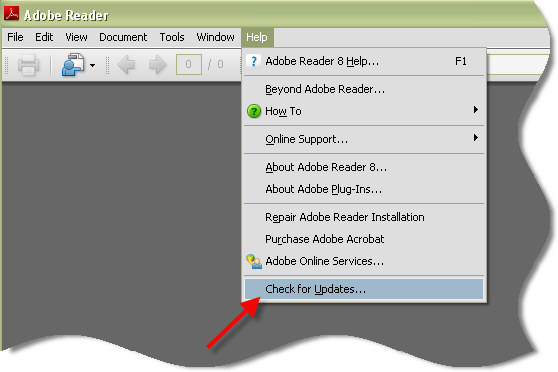
You will have to wait through at least one attempt at an annoying update.
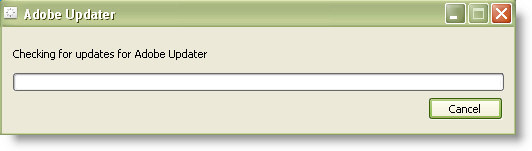
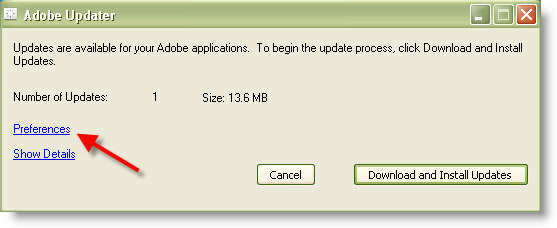
Now when it sees that there are updates, or it fails you will get a page that allows you to download the updates – or change your update preferences. Click on the link that says “Preferences”
Now you will see the settings page for updates.
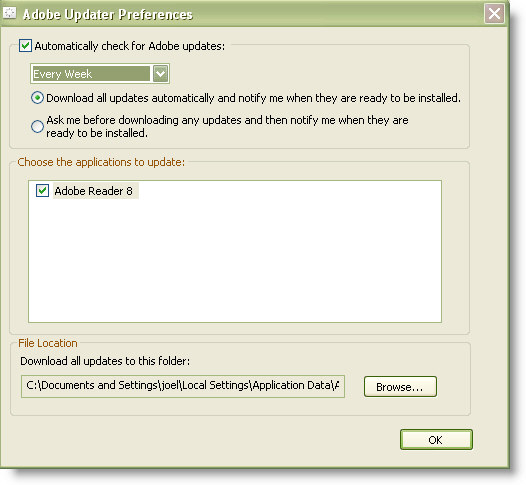
You can set it for a more reasonable update cycle, or disable it all together. Remember that the updates are important since there have been numerous security flaws in adobe over the past two years. Any one of them could allow an attacker to install software on your computer by simply viewing a carefully crafted PDF file.
Considering the security problems, and the fact that Adobe is going to make PDF files even more annoying by adding advertisements (I am not joking). I suggest downloading an alternative PDF viewer. My personal favorite is FoxIt.
One more thing…Subscribe to my newsletter and get 11 free network administrator tools, plus a 30 page user guide so you can get the most out of them. Click Here to get your free tools