
Blue screens, lockups, or simply rebooting. XP has done all of these for me… and probably you too. Whenever a friend brings me a machine that is giving them trouble I start by pulling out all programs that run at startup. Then I scan it with the latest anti-virus software and clean spyware off the best I can.
When that still does not fix the problem I start looking at device drivers. One bad device driver can really hurt the reliability of your system. Bad drivers lead to frequent ‘blue screens of death’, lockups, or even keep the system from booting (Unless you are in safe mode)
Simple enough – we can go into the control panel and start disabling drivers until the problem goes away
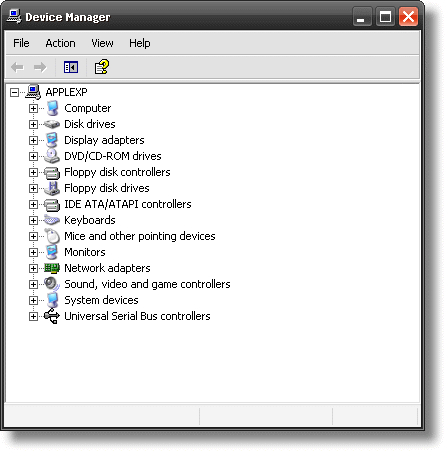
Usually printers, scanners, and any accessory is the best place to start. I go through them one by one disabling until the problem stops.
What if you know it is a scanner, but every time you unplug it the driver disappears? When this first happened to me my first thought was “Oh..it is hidden. I can just go into the device manager and check that menu that says ‘show hidden devices'”
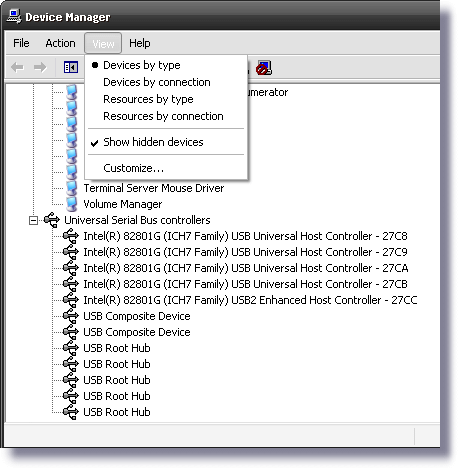
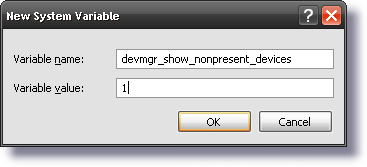
Nope – that doesn’t do it. See…that option is for showing legacy plug and play devices. There are actually two types of hidden devices. Legacy plug and play, and devices that XP hides when they are not connected. The only way to modify the second type of hidden device is to reconnect it…or create a special environment variable named devmgr_show_nonpresent_devices and set it to the number 1
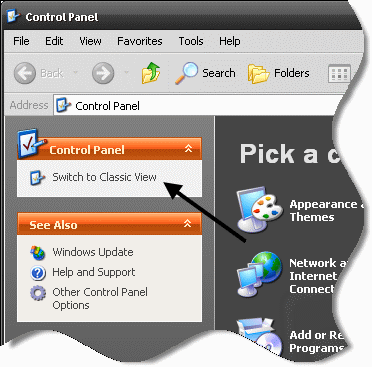
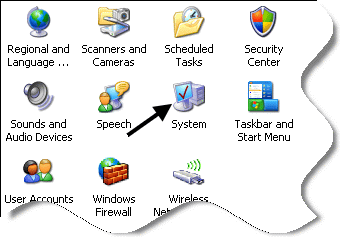
How do we create it? First get into the control panel. Look for the system icon. If you don’t see it you might still be in category view – you will need to switch to classic. Just click on the option on the left:
Now, find the system icon and double click on it.
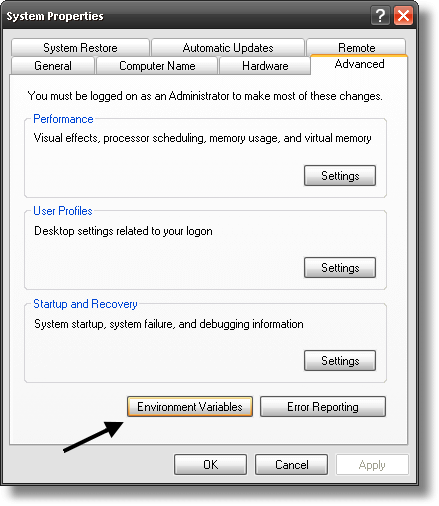
A properties window will be displayed. Click on the advanced tab, and see the ‘Environment Variables’ button on the bottom – click on it.
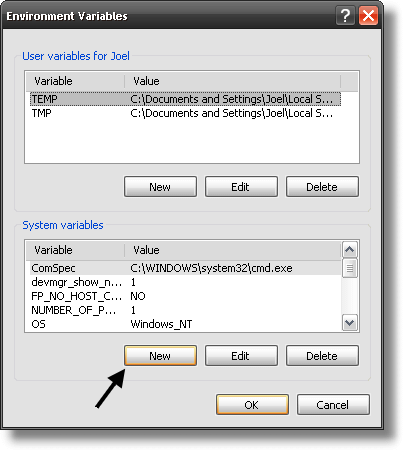
Another window will come up. We want to add a new system variable. So look towards the bottom, and you will see a ‘New’ button – click on it
Now you can enter the environment variable, and the number 1
Click OK on all of the open windows, and reboot. Now you will be able to see those hidden devices. You will know which ones they are right away – they are grayed out.
One more thing…Subscribe to my newsletter and get 11 free network administrator tools, plus a 30 page user guide so you can get the most out of them. Click Here to get your free tools