
Applications that are number intensive – such as Excel, Financial, or Banking software make heavy use of the numeric keypad.
When you are crunching numbers you need to eek every bit of performance out of the computer that you can. I find that number crunchers have the numlock key on 24/7 – and they get really annoyed when rebooting. Why? Because every time you reboot numlock is turned back off.
You would think that Microsoft would have put in an option somewhere within windows that you could set this. No simple way to do it except diving into the registry.
(You can mess up your system when in the registry so be careful!)
If you open up HKEY_USERS\Control Panel\.Default\Keyboard
You will find the key named InitialKeyboardIndicators
If you set it to the number 2 (String Value) Then numlock will be on when booting. If you set it to 0, then numlock will be off when booting.
For those who don’t like playing with the registry, just use our free utility do to it for you:
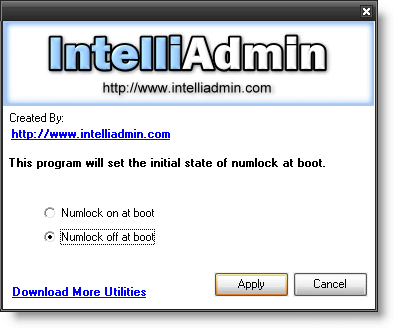
Download it from here – No spyware, adware … just freeware goodness
One more thing…Subscribe to my newsletter and get 11 free network administrator tools, plus a 30 page user guide so you can get the most out of them. Click Here to get your free tools
{ 2 comments… read them below or add one }
Correct Regedit path should be:
HKEY_USERS\.Default\Control Panel\Keyboard
Not necessaryily…this would set it so new user profiles have this setting. If you want to get current user profiles you will need to find them and make the change..or change it at the HKEY_LOCAL_MACHINE level