
I have gotten the call more than once. A frantic call…that an Exchange server was no longer running. When I get in front of the server I see that the server store will not mount….I usually find out the store has run into a size limit.
The first thing I check is the size of the message store. Exchange has a limit (What used to be a hard limit) of 16 GB.
There was a temporary fix that would allow the store to exceed 16 GB, and work up to 18 GB. Why was it temporary? Because if you wanted to go past the 18 GB limit it was time to buy the $Enterprise$ edition.
Sure there were options. One thing you could do was defrag the store. Usually this would win you a few megabytes. The other solution was to get users to clear out their mailboxes. Considering the price of the Enterprise edition, this was the usual course of action.
Finally with Exchange SP2 Microsoft increased the limit to 75 GB. The trouble is this is not turned on by default. By installing SP2 you only increase the current maximum to 18GB (From the old 16GB).
To increase the maximum store size you need to update a registry key. Specifically this one:
HKEY_LOCAL_MACHINE\System\CurrentControlSet\Services\MSExchangeIS\[Server name]\Private-[Mailbox Store GUID]
Lets look at that key. Two sections are determined by settings specific to your server. [Server Name] is the hostname of your server, and [Mailbox Store GUID] is a unique identifier for your message store (This is randomly generated during install).
Take a peek at the registry path for mine (My server’s hostname is DCSERVER1)
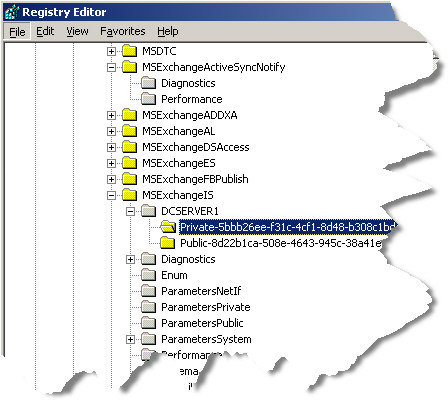
Now when you get to this key, you need to create a new DWORD value named “Database Size Limit in Gb” – Exactly what I have in quotes here with spaces and all. Set it’s value to 74.
Whoa – 74GB…why not 75 GB? Hmm good question. I bet you will be emailing me some late night telling me you hit the 75GB limit. If so you are hosed. If you set it to 74GB it allows you to temporarily change the limit to 75 GB…free some space, and reset back to 74 GB. Be smart. Give yourself an easy escape and set it to 74 GB.
Restart Exchange, and the changes will take effect.
Keep in mind that you must have Exchange SP2 installed for this to work.
One more thing…Subscribe to my newsletter and get 11 free network administrator tools, plus a 30 page user guide so you can get the most out of them. Click Here to get your free tools
{ 1 comment… read it below or add one }
I can not fully see the private key you show. i am runing exchange 2003 w/sp2 and want to increase the size of default to 5 gb. what would the key look llike for this?? also waht is the default for deleted messages?