
Not sure if you have needed it before, but if you work with lots of 2003 Server machines you will find yourself using the recovery console at least once. It essentially is a command line prompt that allows you to perform tasks on a system that cannot boot.
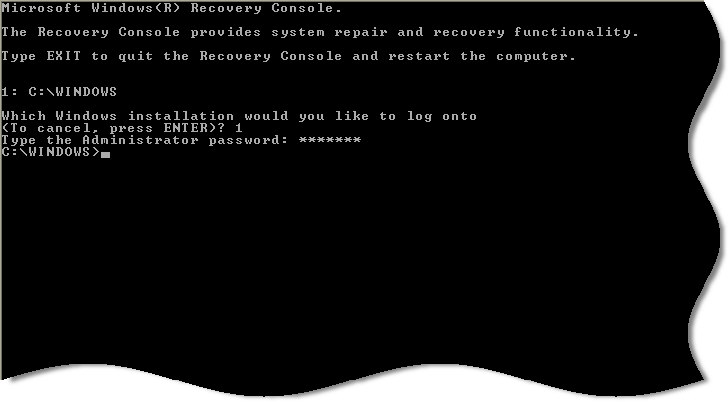
Getting to the recovery console is not always fun. You need to make sure you have the original installation CD for the version of windows you have. Sometimes the recovery console cannot see other Windows Installs if the versions are too far apart (Or even different service pack levels). It takes a good chunk of time too. You need to wait through the various boot procedures and gyrations that the Windows install CD likes to go through.
As I have said before…I like to help others with tough IT problems so I can gain more insight as to what life is like for our customers….so I would say that in any given year I am called out many times to help with a dead Windows 2003 server that has no backups and has some “Really important data” on it.
After spending hours working in the recovery console (This means making a change, rebooting…nope…back to recovery console) I wanted a way to install it directly on the hard drive, and not boot it from the CD.
It is actually not to hard to do…and I recommend doing this for every single Windows 2003 server install that you do (Before patching it!)
Once you have your clean install completed (*See Below), make sure the install CD is in the drive, and launch setup with this command line:
d:\i386\winnt32.exe /cmdcons
‘d:’ is the drive letter of your CD/DVD drive.
It will ask you a few simple questions and quickly it will be installed on your system. The next time you boot you will see a new option:
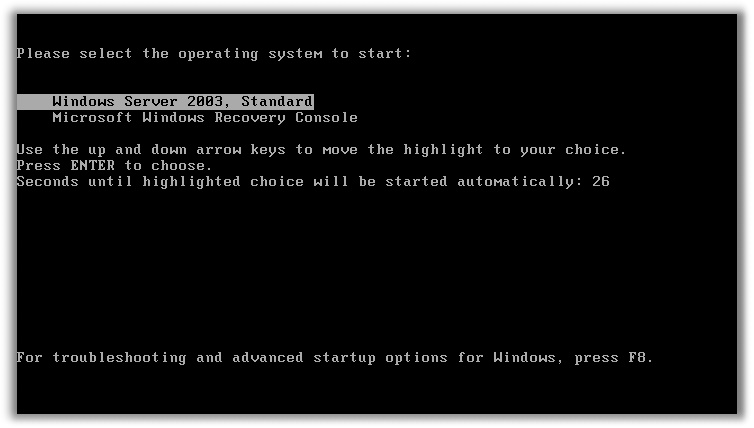
Now when I get that call I can easily get to a command prompt without digging for the original installation CD.
*There is actually nothing keeping you from doing this on a current install, but many times the recovery console installer will simply refuse to run because it claims that the current version of windows is newer than the one you are trying to install.
One more thing…Subscribe to my newsletter and get 11 free network administrator tools, plus a 30 page user guide so you can get the most out of them. Click Here to get your free tools