
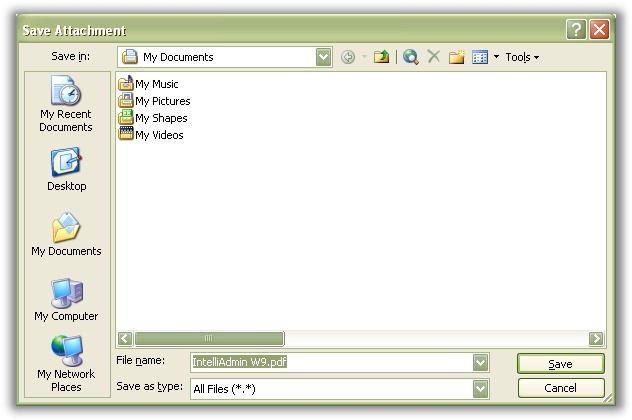
I had a user ask me this week: “Steve, I always save my attachments in a download folder on my computer. Unfortunately Microsoft Outlook always defaults to ‘My Documents’, and I can’t see any way to change this. Do you have any idea how to change the default download folder?”
This is correct. There is no option I can find in Outlook that will allow you to change the default download folder for attachments. This means every time you try to save an attachment you need to start browsing around your drive to find the right spot. This can be a time consuming task if you have network shares that slow down explorer.
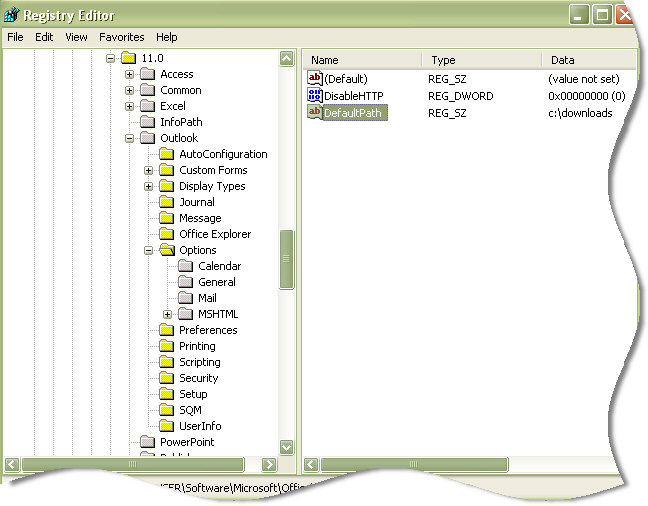
After doing a little digging I discovered that the default download location can be changed by opening regedit and drilling down to this registry key:
HKEY_CURRENT USER\Software\Microsoft\Office\11.0\Outlook\Options
Create a new string value under this key (If it does not already exist) named DefaultPath, and set the value to the absolute path you would like to use as your default location.
In my case I wanted to change it to c:\downloads\ Here is what it looks like in the registry:
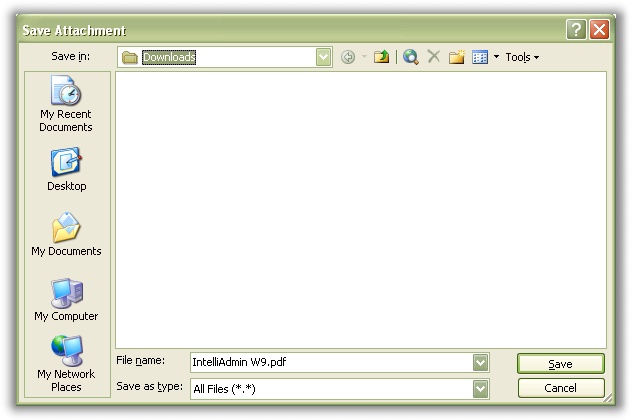
So now when I go to save an attachment, I don’t need to fish around for the downloads folder – it automatically defaults right to it:
One more thing…Subscribe to my newsletter and get 11 free network administrator tools, plus a 30 page user guide so you can get the most out of them. Click Here to get your free tools
{ 7 comments… read them below or add one }
I do this but now the attachments are overwritten
Awesome tip, thanks! This Microsoft oversight in Outlook has been driving me crazy and your fix worked like a champ!!
NICE!! that worked in my 2007 as well. Why can’t MS make things easy and document them for us? Thanks soooo much!
works in 2010 too, thanks for the quick tip
Confirming that this works for Outlook 2007 (Office 12). Thank you.
nice. screw you, microsoft.
Nice, thanks. It worked on my computer, but not on another. Any suggestions.