
When I move a user to a new machine I like to move everything. Yes it sounds obvious. But I like to get down to that last detail, that others seem to pass off as unimportant.
For example, I explained a few weeks ago on how to backup and restore the auto complete data in Outlook. In that vein I would like to show you how to do the same with Internet Explorer.
I am amazed (When I didn’t move this stuff over) how many times users wanted to know where their ‘bookmarks’ were. Yes, you guessed it – their bookmarks were the auto complete URLs. When I start to explain that those aren’t their bookmarks…well the eyes glaze over.
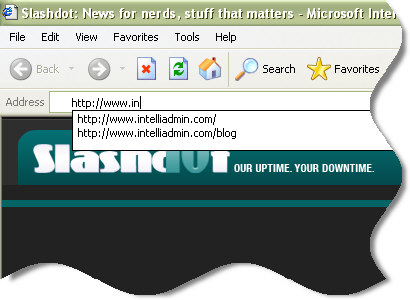
To get to the auto complete data, you will need to open regedit. Drill down to this key:
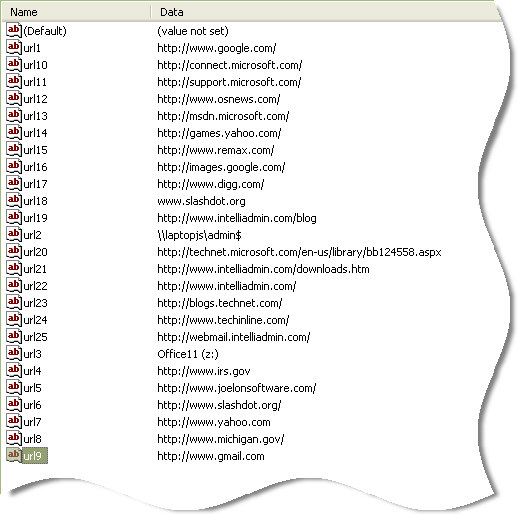
HKEY_CURRENT_USER\Software\Microsoft\Internet Explorer\TypedURLS
If you select it, you will see a complete list of all the auto complete URLs on the right.
Now that it is selected, click on the file menu and export the key. Save the exported key on a flash drive, or a network share. It needs to be put somewhere you can get to it on the other system
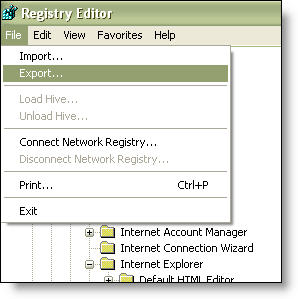
Once on the new computer, you can simply open regedit and import the key. Next time you restart Internet Explorer it will have the original auto complete URLs.
One more thing…Subscribe to my newsletter and get 11 free network administrator tools, plus a 30 page user guide so you can get the most out of them. Click Here to get your free tools
{ 2 comments… read them below or add one }
Thanks I needed that. I have a glazed over boss who wants his urls back from his old computer.
Thanks for the fix . There are so many users at my company that save their ‘FAVORITES’ in autocomplete in IE and are completely clueless on adding a site to bookmarks.