
Neither of them have been released yet (Except 2003 SP2), but now is the time to start thinking about blocking the automatic install of these service packs. This will allow you to set your own timetable for deployment.
You have 4 options for preventing the automatic install of these service packs:
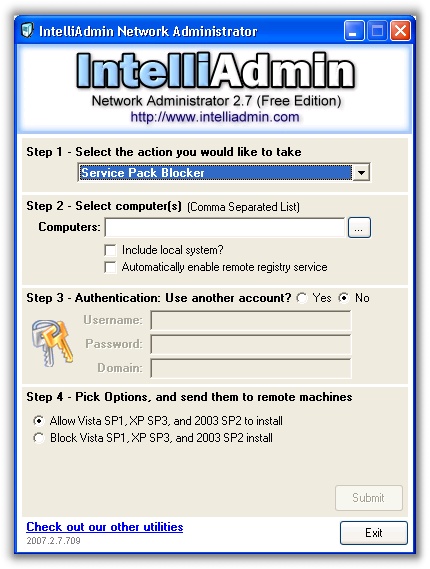
1. Download our Network Administrator to deploy the change across your network.
or
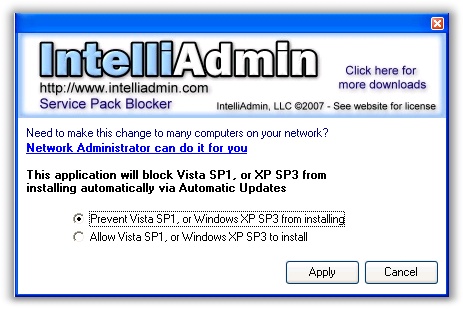
2. Download and use the free GUI tool we have to make the change on a single system
or
3. Download and use the free command line tools from MS
or
4. Update the registry manually. To do this you simply need to go to this key:
HKLM\Software\Policies\Microsoft\Windows\WindowsUpdate
Create a new DWORD value named DoNotAllowSP and set it to 1 (To disable the SP install), or 0 (To allow the SP install)
Still no word as to the exact date these service packs will be released, but you can block them now and install when you have fully tested them within your environment.
One other final note – all of these blocking options are only valid for 12 months following the release of the service pack. After that, Windows will ignore the registry change and install.
One more thing…Subscribe to my newsletter and get 11 free network administrator tools, plus a 30 page user guide so you can get the most out of them. Click Here to get your free tools