
From time to time you will find that there are employees that receive time sensitive emails. This means if they are gone for a few days, and no one is around to answer…customers start to get testy.
I know the easy answer to this problem is to setup a distribution group. Have this group send to everyone in that department. This is not a convenient, or good answer in all cases. It may be only temporary, and you don’t want a whole group of people seeing confidential email.
The other way (And this is what I am going to show you today) is to temporarily forward all inbound mail to another user.
To do this you will need to be on the Exchange server. Open the user’s properties under Active Directory Users and Computers.
Click on the “Exchange General” tab.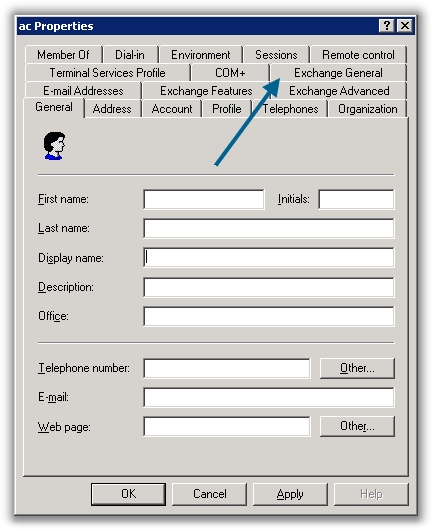
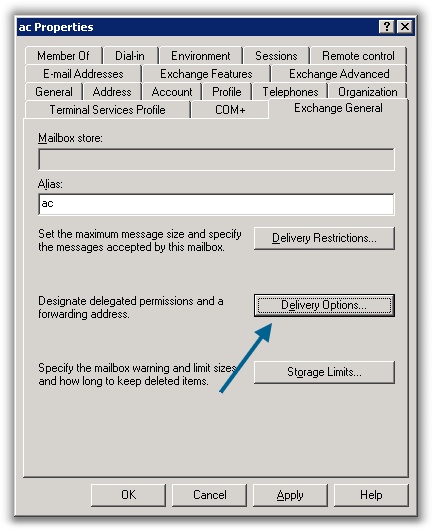
Now that you are on that page, click on delivery options
Now, the options are shown. You can change the email to forward (1), and select the user you want to receive the email from active directory.
Second, you can also allow the user receive the email in addition to the user receiving the forwarded email. This can be accomplished by checking the “Deliver messages to both…” (2).
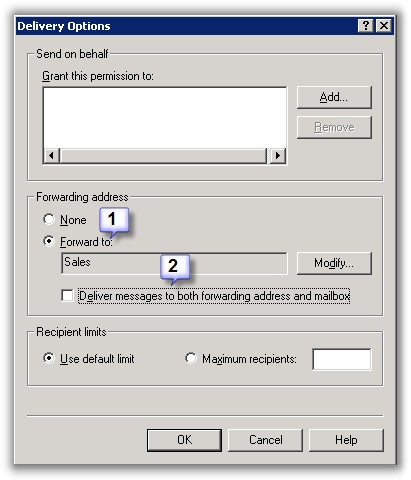
Click OK, and email is immediately forwarding to the new user.
Thats all there is to it.
When the user returns, you can simply switch it back to “None”, and the email is no longer forwarded.
One more thing…Subscribe to my newsletter and get 11 free network administrator tools, plus a 30 page user guide so you can get the most out of them. Click Here to get your free tools
{ 23 comments… read them below or add one }
Thank you very much. Appricate you taking the time to document this process.
Thanks for the help
Can the email be setup to forward to multiple addresses?
No, it cannot. You can only pick one email address to forward to. One way around this would be to setup a distribution group that sends to your multiple email addresses, and then set your forward to that dist group.
Great idea! Thanks!
“To do this you will need to be on the Exchange server. Open the user’s properties under Active Directory Users and Computers.”
I remotely access my exchange server form home to forward other people email to my email. When i right click on the user name go to properties.. There is not any Exchange tab. if anyone can tell me what could be the issue.
This is because your domain controller does not have the exchange tools installed. You can either install these tools from the Exchange CD, or simply remote into the exchange server and go to Active Directory Users and Computers
Hi
Email forward to group in Exchange
I need to be able to forward the email from a retired member of our staff to both the Buisness Manager and the Plant Manager. When I create the distribution group (not mail enabled), it does not show up as an option in the Object choice for [Exchange general –> Deliver Options] on the properties pages of the account in question. Is their a way for Exchange to auto forward mail to a group? I know you can in Outlook, but that does not help here. I would have sworn I had done this in the past, but if I have, its long since gone from AD. I do not need or want a mail-enabled group, just a distribution list, what am I missing?
please….
Is it possible to forward incomming mail to a selected folder – not to public folder and not to incomming mail. I want to forward to a seperate subfolder.
We are using a SBS 2008 I need to forward email from one box to another and cannot find Exchange General tab anywhere can you help?
I believe the administration model for Exchange 2007 (I think that is what is included with SBS 2008) has totally changed.
This means that exchange is no longer integrated with Active Directory Users and computers….as you can see from this forum posting:
http://www.networksteve.com/exchange/topic.php/Active_Directory_Users/Computers_Integration/?TopicId=1008&Posts=4
I am not sure how this is accomplished in SBS 2008…I believe it is totally different in Exchange 2007. I have not been able to test this out on a vm yet..
Hi,
I have one user forward to his secretary, but when she also is on the TO or CC list she only receives one copy; the problem is that sometimes she needs to know if the mail was also sent to her and she can´t see that. Anyone has a tip on how to solve this problem?
Thanks in advance.
Americo
Thank you for the information posted here. It definitely helped me. I am a junior system admin still learning this article helped me understand one more thing about AD.
Its very helpfull.I got the forward path setting option.
thx for your support
Dear sir
if we do forwarding in exchange server can we have the copy of that email in our exchange email
BR
Hi,
@khalid
You can select an option to leave the copy in that particular exchange mailbox.
However this email forwarding rule has serious limitations. You cannot forward selected emails but all inbound correspondece. I found this article that describes how you can pretty easily auto-forward only concrete emails to one or an unlimited number of recipeints on Exchange or outside Exchange.
http://outlook-center.com/How-to-forward-email-on-Exchange-Server/114/
Has anyone tested this app described there?
Thanks for the detailed documentation.
We have set this up as advised but emails are redirected (keeping the original sender’s email address) and not forwarded (showing email address of the account where the forward is setup as sender).
Is there any way to achieve a real forward instead of a redirect?
No, it has to go to the exchange mailbox first before it can be re-directed. It might be possible with Exchange 2010 and powershell….but no 100% sure
i have 100 users needs to forward thier work email to thier private ones how can i automate the process for multiple users
Is it possible to forward all the Sent mails going from one account to other account in Exchange 2010?
Hello Sanjay…
It is possible, This link might help
http://support.sherweb.com/Faqs/Show/how-to-forward-or-redirect-emails-exchange-2010
Thanks for the detailed article. I have done some email forwarding on my exchange 2003. Is there any way that I can list out all the emails accounts which are being forwarded.
I am an exchange admin for a big organization with a bout 9000 on-prem mailboxes. We use Exchange 2010. Autoforwarding for this one use works but whenemails are sent to a large dynamic distribution list that conatins all users in the company including this user, the autoforwarding to her external email address doesn’t work. In any other cases it works. Does exchange have an issue autofording emails when it is sent to a large dynamic distribution list?