
I recently received an email:
Dear Steve,
I was going through google search and I came across your script. Please, how do I reset the network users home page to a particular website and make it permanent such that they would not change it?
Thanks.
Normally the answer would be to use group policy. But I have a few machines that are not even a member of a domain – and I would like to do exactly what he asked. Since group policy is simply registry settings, we can make this change by hand. (As always if you are not comfortable with the registry then don’t do any of this. A screw up in the registry can screw up your computer so bad it won’t boot anymore)
The original key to set the home page is located under:
HKCU\Software\Microsoft\Internet Explorer\Main\Start Page
If we simply extrapolate we can create a Policy key in the same location (You can do it under HKCU for just the current user, or HKLM for the whole machine)
HKCU\Software\Policies\Microsoft\Internet Explorer\Main\Start Page
You will need to create some of the keys along the way. See my screen shot below. This is what it looks like after I have created the keys
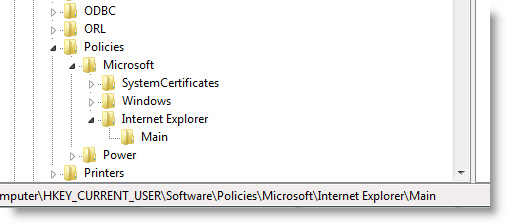
If a picture is not a 1000 words for you, then do this:
Open regedit. Drill down to HKCU\Software\Policies\Microsoft
If an “Internet Explorer” key does not exist, then create one.
If under that a “Main” key does not exit, then create one.
Then in Main, you simply create a new string value, and name it “Start Page” The value you place in here will be the new home page you want to force IE to visit:
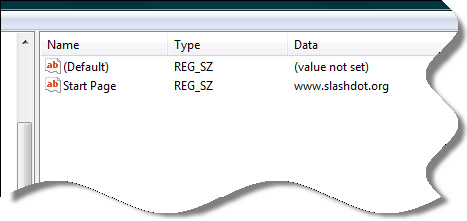
Now, when the user changes the home page – it simply ignores it (I have only tested this on IE 7…someone will have to tell me if it works on IE 6). Not very user friendly. Don’t forget that you set this up…or you might not know why every time you try to change the home page it switches back.
This seems like it should be in our Tweek IE utility…I will have to see what I can do.
One more thing…Subscribe to my newsletter and get 11 free network administrator tools, plus a 30 page user guide so you can get the most out of them. Click Here to get your free tools
{ 3 comments… read them below or add one }
Pictures require password… cannot view them
It is fixed now. Thanks for the email Ron.
is there a way to set multiple websites to start pages and/or let users add other pages?