
To keep myself from breaking things, or minimize the damage done when I open one of those “Flying Hamster” videos that has a virus hidden in it, I don’t login to Windows as an administrator
When I need to do something that requires admin access, I elevate that process by right clicking the program icon and selecting “Run as Administrator”
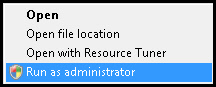
If you use a program many times through the day, it is nice to change the properties of that app and force it to run as administrator. That way you are automatically prompted when you launch it – no right clicking needed
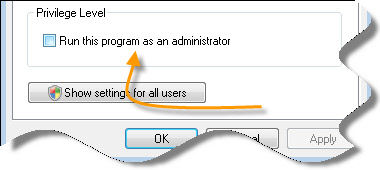
This is where I got really frustrated with Vista. Do the same for the command prompt shortcut and everything is disabled on that page
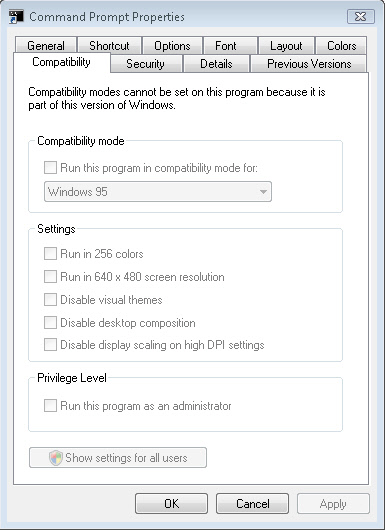
For the longest time I could not figure out how to get the command prompt to auto-elevate. I even resorted to using this tool (Great tool BTW) to change the resources within the cmd.exe file to force it to run as administrator.
Today I re-installed my Vista machine for the 20th time, and I finally found out how you can do this – It was much simpler than I thought.
You right click on the command prompt icon, and go to properties.
Click on advanced
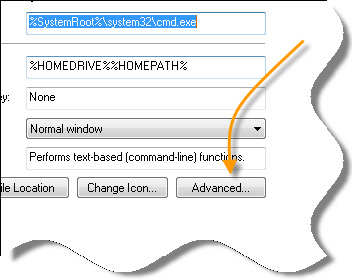
Then. SURPRISE! There is the option:
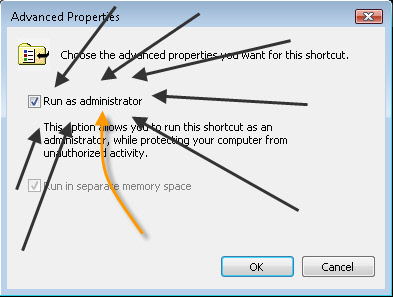
Woo Hoo! Now I don’t have to keep right clicking on the command prompt to elevate it.
One more thing…Subscribe to my newsletter and get 11 free network administrator tools, plus a 30 page user guide so you can get the most out of them. Click Here to get your free tools