
Update 1/18/2007 11:01 PM EST: I have received a few questions about this method – no it will not disable mice, or keyboards. It only disables storage devices attached to the USB port. This includes hard drives, flash drives, and any other type of USB storage device. And yes, if the user has administrator access they can reverse the changes
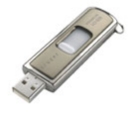 |
Our USB Flash drive enable/disable program has been out for quite a while now. Recently we have been getting bug reports that it no longer works. |
How it operates is simple, we set a registry key that tells the UsbStor driver not to load on boot:
HKEY_LOCAL_MACHINE\SYSTEM\CurrentControlSet\Services\UsbStor
Start = 4 (Disabled) – Don’t start the driver on boot
Start = 3 (Enabled) – Start the driver on boot
If we visit Microsoft, this is an appropriate way to disable USB drives, they even recommend it as a group policy to disable USB, CDROM, and floppy drives:
http://support.microsoft.com/kb/555324
After loading about 10 different variations of Windows (2000, XP, 2003, and Vista with different service packs) in VMWare we started to see a clearer picture.
Some variations will simply reset the key ‘Start’ back to 3 when a new flash drive is plugged in. The first trick we tried was denying write access for the system account on the USBStor registry key.
It worked on everything except Windows 2003. This version of windows would reset permissions on the key – and delete it!. Then it would re-create with the USB storage enabled.
Then we came across this document:
http://support.microsoft.com/kb/823732
(Looks like it was published much later than KB 555324)
It tells us to put deny permissions for the users we want to lock out on UsbStor.inf, and UsbStor.pnf in the c:\windows\inf folder. Funny thing – it doesn’t work. Windows XP will reset the permissions and let the user install their flash drive anyhow.
Now we could have created a filter driver that would sit between windows and usb storage, but we wanted something simple that an administrator could do without even using our program.
We found a simpler solution…rename the files. If we simply rename the files to UsbStor.inf.backup, and UsbStor.pnf.backup windows can no longer load the drivers for usb storage.
So to recap. Rename the files, set the registry key to 4, and users can no longer access any type of usb storage. Reverse the rename, and reset the registry key to 3 and users can access their usb storage again. Ahh. Almost forgot. Reboot required each time you switch.
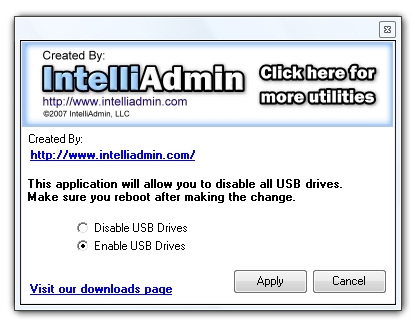
We have a few programs now that will do this for you. First the USB Disabler. It is for disabling, or enabling USB flash drives on the computer you run it from.
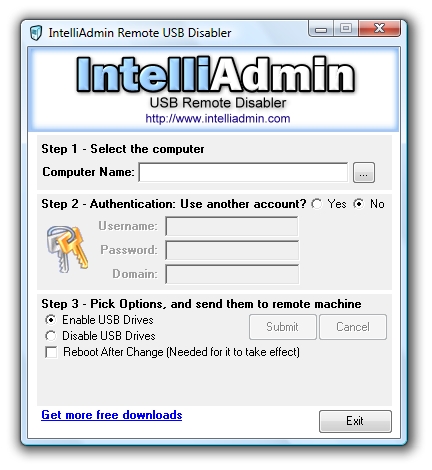
Second we have the remote USB flash disabler. It will allow you to pick a machine on your network and enable, or disable USB flash drives
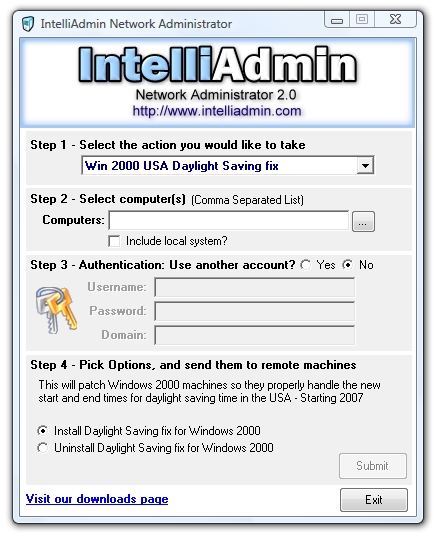
Third, our Network Administrator product can apply it to all the machines on your network.
They all can be found on our downloads page
One more thing…Subscribe to my newsletter and get 11 free network administrator tools, plus a 30 page user guide so you can get the most out of them. Click Here to get your free tools
{ 28 comments… read them below or add one }
How can i change file names using group policy?
You can’t
That is why a better way to do this…if you have a large network and want to deploy the change is to use our Network Administrator program:
http://www.intelliadmin.com/NetworkAdministrator.htm
how do i use the flash disabler on vista
It should work fine on Vista. Just make sure you right click and run it as an administrator.
how can i disable usb only for specific users ? say deny access to all limited users in windows vista / 7 ?
There is no functionality within windows that will allow you to do this – the way you can do this is to use a product we have called USB Disabler Pro:
http://www.intelliadmin.com/index.php/usb-disabler-pro/
i have connected my clients to server,,,,,, i need to get a msg to server if the client uses the pen drive or any external device..can u give a script file
When using SATA HDD on IDE Mode, the drive will be run as a USB Device in Windows XP. If we disable uSB Device, will it disable the SATA HDD also ?
No, since the SATA hdd does not use USBStor drivers to load the drive. Where do you get your information that SATA drives are run as USB Devices?
Further more to USBSTOR : the issues has been very correctly described. additionally u can try to protect ur pc from unauthorise data download through USB storages. just add another registry key :
HKEY_LOCAL_MACHINE\SYSTEM\CurrentControlSet\Control\
add a key as ‘StorageDevicePolicies’ followed by a DWORD value in it as ‘WriteProtect’ and change the value to ‘1’.
it will not allow anything to be written onto the USB Drives even thouth usbstor gets enabled and detect the USB Stick.
Hi there,
I tried USB Disabler and it works fine, but here’s the problem: while the computer does not load the USB driver, the VMWare virtual machine does it and so I can see the usb device.
How can I resolve this issue?
Thanks.
Massimiliano
i dont want to my network user access my network place on their pc ,no body cant see each other computer on my network place
Hi all!
Thanks for this great article.
In your article you say, that after setting the registy entry to value 4 without deleting the 2 usbstor files, windows will reload the drivers and reset the registry entries value to 3 again if you plug in a new usb storage device.
I did not observe that behaviour. In my case, it was totally sufficient to set this single value to 4 and from this point on, my win xp installation was no longer able to detect any usb drive.
With which windows versions did you observer this “reset”-behaviour?
Ok, please ignore my posting above. After uninstalling my usb devices _completely_ from the registry, the effect occurs on my system too.
So, i renamed the usbstor files as suggested in the article, rebooted and plugged in my usb stick. But then a window pops up that asks me, where the driver files for this usb devices are located. Is there anyway to suppress this behaviour?
hi tell me all about disable pen drive
hi USB Disabler is good tool for admin
but i am facing an issue witn win 7 PC in my network. ” A connection attempt fail because connected party did not respond after time aperiod of time”
Hello San,
You need to make some changes to Windows 7 to get it to work:
http://www.intelliadmin.com/index.php/2009/08/windows-7-the-admin-share/
In addition, make sure the remote registry service is started and set to automatic.
usbremotedisabler. I cannot get it to work on an XP network (other than disabling the machine it is run from). Error message “failed to set data for start”. No firewall or protection running. Programme is being run as administrator. Step 1 locates all computers on the network.Computer selected from list. Step 2 – Username – Administrator (also tried the computer name of the computer the programme is run from). Password – as required at logon on the computer the programme is run from. Domain – IP address of the computer the programme is run from. On submit, blue bar runs for several seconds then error message. What am I doing wrong?
T.Betts
This is a an access denied message. You probably have a feature enabled known as “Simple File Sharing”
You will need this turned off, and file and printer sharing enabled….read this article for a walkthrough:
http://www.intelliadmin.com/index.php/2008/12/enabling-file-and-printer-sharing-in-windows-xp/
If you are still having trouble, send me an email at support@intelliadmin.com and I will try to help.
Steve
Absolute genius. I followed the link 2008/12 re file sharing. The first change re file sharing was already in place. The second change re “simple file sharing” in folder options was ticked so I unticked it and hey presto, the remote USB disabler programme works!!! I would neve have found the second issue in folder options in a million years. Your product is excellent and the support is even better. Sincere thanks
Trevor Betts
P.S – Just tried a wireless USB keybourd and mouse. They operate perfectly. USB memory sticks and USB external hard drives do not.
Thanks, Thanks, Thanks
Trevor Betts
Glad it helped you out Trevor – thanks for taking the time to comment.
Steve
Hi..
Is there any software that can block/disable to specific flash disk?for example, only FD 1 & 2,can be read to my office, others not.
Do you have any idea?
does this work in windows 7?
Hi Marvin,
Yes it does work in Windows 7.
Thanks,
Steve
How can I achieve the following situation?
I have three external USB drives connected to a Win 7 Ultimate 64 SP1 box. When I do a restart it hangs since it tries to boot from them but there is no OS on them.
So ideally, during a restart I would like to keep the drives plugged in and once the restart completes I like to use the drives again naturally.
Can this be done with USB disabler? If I disable the drives before the restart will they still be disabled after the restart is finished? If so how can I once the restart is finished access the data on the USB drives without another restart as another restart with the USB drives enabled would cause Win to hang.
Thank you for any help with this situation.
Best Regards
Hi Frank,
We don’t check moderation more than once a week….so that is why it has taken a while to approve. USB Disabler would not help you at all in this situation.
You need to look in your BIOS and see the boot priority. USB Devices are probably at the top right now…you need to move your internal hard drive into that position.
Thanks,
Steve
Hey There
I can i switch between “enable USB drive” and “Disable USB drives” parameters for USB disabler free in batch file?
Thanks!