
Recently I received an email from a reader asking:
Steve – found your blog and tool for ms word 2007 compatibility. Do you have any suggestions for changing the default font that is used? The calibri font is the default in 2007, and it does not come with 2003. This can cause issues when a document is saved from 2007 in 2003 format and then shared with someone who does not have the office 2007 compatibility pack installed and thus does not have the calibri font.
I started searching through the registry to see if there was a location that Microsoft stored this…and actually it is not stored in the registry at all. The default settings for a documents font, and many other settings are pulled from a file called normal.dot

If you open the Normal.dot. Well first you have to find it. It is located in the users current profile. It can be found here:
c:\Documents and Settings\[user]\Application Data\Microsoft\Templates
Where [user] is the current users name.
Back to where we were at…open it with word:
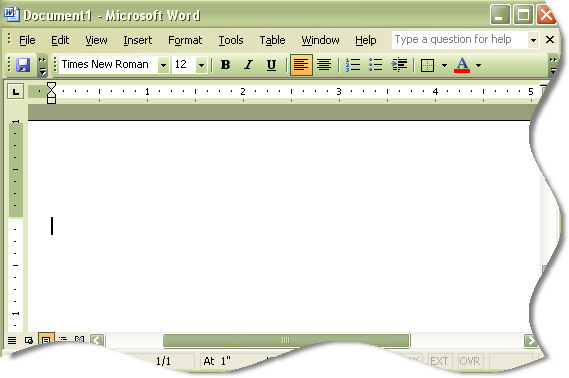
And it looks like a blank document. Simply make your changes. *Any* changes. Change the font, add a header, a footer, or anything…and save it as Normal2.dot in that same folder.
Then make sure all instances of word are closed, and delete the old normal.dot (Or rename it if you want to back it up), and rename the new one (Normal2.dot) to Normal.dot.
Now when you open word it will default to the settings you have created.
One more thing…Subscribe to my newsletter and get 11 free network administrator tools, plus a 30 page user guide so you can get the most out of them. Click Here to get your free tools
{ 2 comments… read them below or add one }
How do I reset default font in ms word?
You need to create a new normal.dot and put it in the folder shown in the article.
This is not put in a setting, or stored in the registry as far as I know.