

The automatic login feature of windows is nice. It can be used for that machine you don’t need to lock down – or when deploying a system image that will reboot a few times during setup.
If you are not familiar with the automatic login feature, it allows you to tell windows to automatically login with a specific username, password, and domain name. A while back I wrote an article about it, and a free utility to set it up. Please be sure to note, that your password will be stored in the registry unencrypted.
There are times when you only want to have windows login automatically a specific number of times. A good example of this would be when deploying a system image. The imaged system boots. It automatically logs in as administrator, performs a task, and then reboots. So it would be perfect if you could tell windows to automatically login once, and the next time start asking for a username and password again.
I didn’t realize this was actually possible to do until browsing through the documentation for the WinLogon key. There is a value named “AutoLogonCount” It specifies the number of reboots windows should listen to the AutoLogon registry settings.
The value is located under this key:
HKEY_LOCAL_MACHINE\Software\Microsoft\Windows NT\CurrentVersion\Winlogon
To set it, you simply need to open regedit. Browse to the above location, and create a new DWORD value named AutoLogonCount. Set it to the number of times you want AutoLogon to work – and then reboot.
After thinking about it I decided this would be a perfect edition to our free utility. So I have updated it to include this feature:
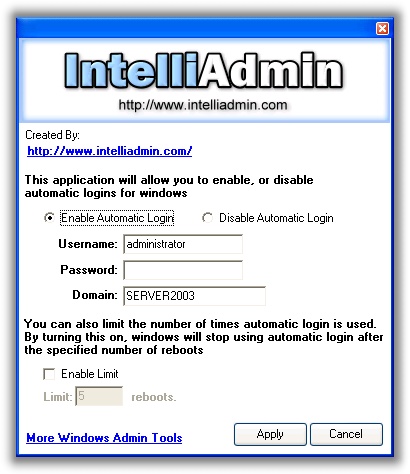
If you either set it yourself in the registry, or use our program – please remember that the automatic login feature requires that the password sit in the registry unencrypted.
To get the utility, simply download it from here – And remember. As always we have no spyware, viruses, or adware – only freeware goodness.
One more thing…Subscribe to my newsletter and get 11 free network administrator tools, plus a 30 page user guide so you can get the most out of them. Click Here to get your free tools
{ 3 comments… read them below or add one }
I use this handy!!
Mallwarebytes claims that this Windows Auto Logon Utility has a build in Trojan code.
Which is true, because the action could have beeing seen as a remote registry change of a part that should logon a account automaticly.
Thing is, it’s not a trojan, the action is done by the owner of the system, done by a purpose.
Regards,
MP
It is a false positive. No security hole since you still need an administrator username and password to make the change. Malware bytes is just looking for the remote registry code and assuming it is badware.