
Update 1/18/2007 09:23 PM EST – Some changes in windows have made this article out of date. Check out our new article on the subject to learn how to disable USB flash drives
Once in a while I have a friend, or customer that needs to keep people from using the USB ports to copy data off of a system.
It is easy to lock a machine down, disable the floppy, and cdrom in the bios. Many times when you try to disable USB – it disables it entirely.
This can be a real pain on newer laptops or systems that don’t even have a PS2 interface for the mouse or keyboard.
There is a simple registry change that will keep the USB storage drivers from starting when the system boots. Keeps people from walking up to a PC and copying data off with a USB key, but allows you to keep your scanner, keyboard, and mouse working.
As always – back your system up before messing around in the registry.
Just open regedit and browse to this key:
HKEY_LOCAL_MACHINE\SYSTEM\CurrentControlSet\Services\UsbStor
Notice the value ‘Start’
Switch this value to 4, and USB storage devices are disabled.
Switch this value to 3, and USB storage devices are enabled.
For those of you that don’t feel like messing around in the registry –
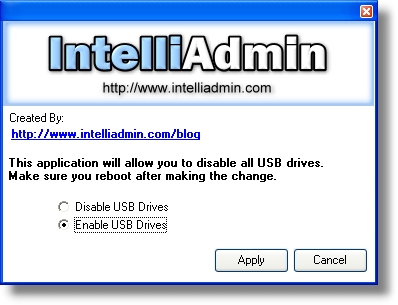
We wrote a program to do it for you
One more thing…Subscribe to my newsletter and get 11 free network administrator tools, plus a 30 page user guide so you can get the most out of them. Click Here to get your free tools
{ 9 comments… read them below or add one }
this tool will be very usefull for my day to day activity. thanks
This is very, very useful. Thanks so much..
Thanks a lot and great tool and tip !!!
And what about FAT32 and other formats that’s not NTFS. Those will be available.
Do you know any way to do it?
Thanks!!
This is a great tool for protect the pc
great.i feel one of the best i/p from ur site.
keep it up…………..
thanks
Hi,
i done know about this tool an how to use any body help me friends.
hi, i have done all of it. It works for a pendrive but then when I insert another different pendrives / usb, it detects again. how can u explain this? kindly reply to my email.