
Click Here to go back to Part 1
Once the install finished the system rebooted and it launched right into the desktop without even typing in a password. At first this concerned me, but quickly it came up with a POPUP box:
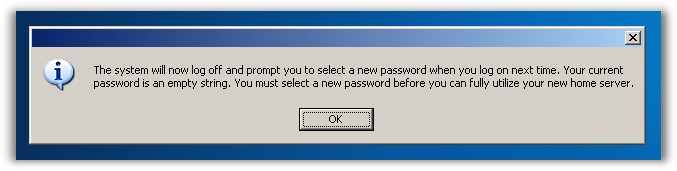
I rebooted, and changed the password right away. A few things to notice on the new desktop. A desktop search bar is attached to the task bar, and the three icons on the desktop are the Device Manager, Shared Folders, and a new one “Server Console”
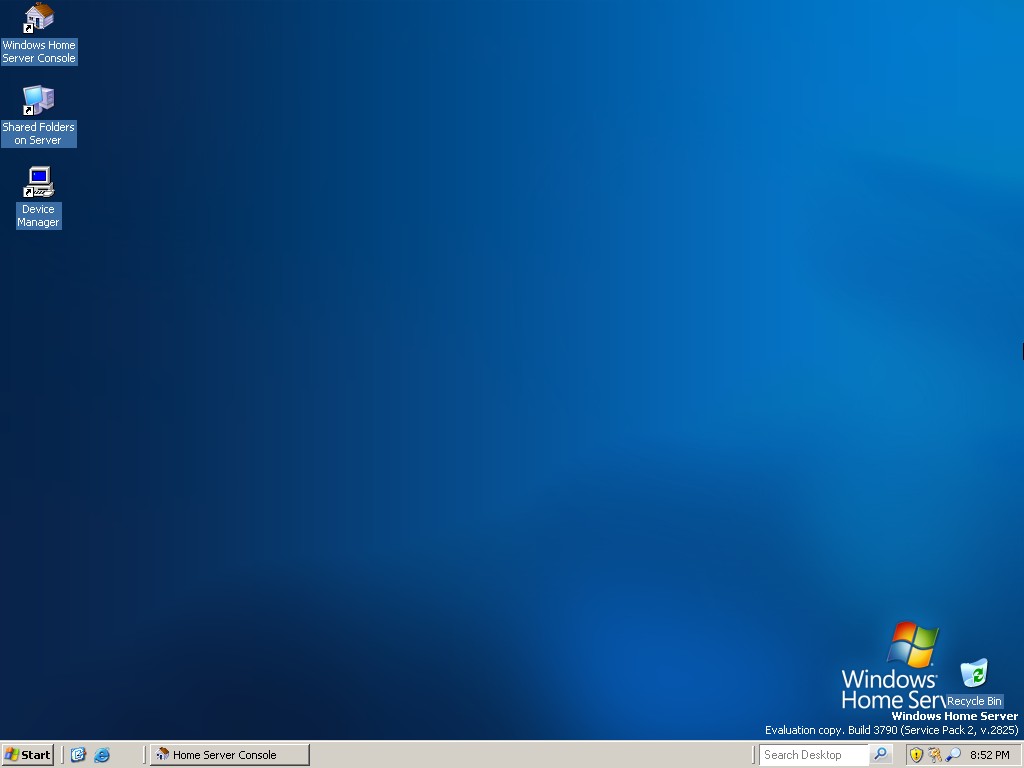
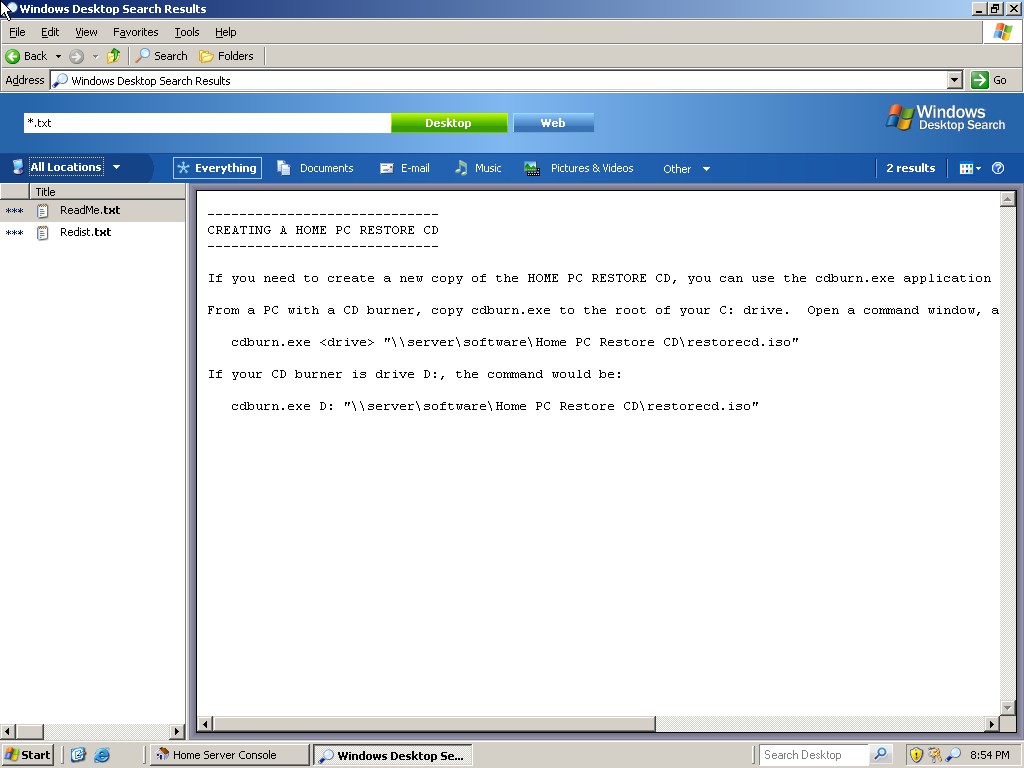
I had to try out the desktop search right away. This one is a sore spot with me and Microsoft. Every time they update the file searching within windows it gets worse. To my pleasant surprise it was better. Even better than Vista. The best part of this search is the previews it shows you when it displays the results
The device manager. Is…well…the device manager. Not much to write home about here. Lets look at the server console. Really, this is the core of the server.
It is broken up into 4 parts
-Computers and Backup
-User Accounts
-Shared Folders
-Server Storage
And an extra button that will show you the health of your network.

Computers and Backup – Looks like it is still under construction. From what I can tell it will let you schedule backup jobs for other systems on your network, and your Windows Home Server. This is always a big concern for me, as I would like to automate the backups of my home network. I don’t want to lose 10 years of digital photos.
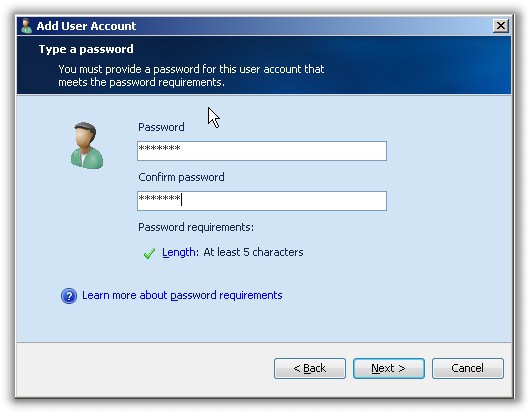
User Accounts – Allows you to add and remove user accounts. This is a special user account management interface that has been tailored to the needs of this version of Windows. It only includes options that are relevant to Windows Home Server. This is the simplicity that I was looking for. I like it
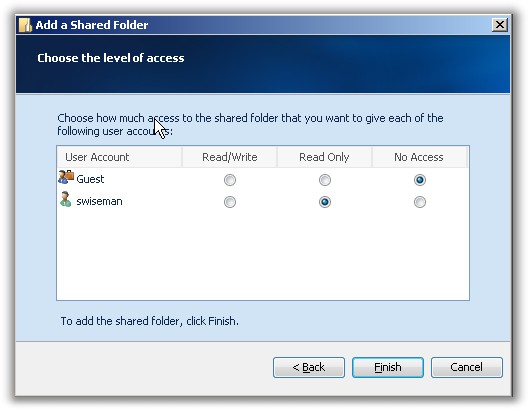
Shared Folders – Another interface that is simple, yet very functional. It has a an easy to use interface for adding new folders, and granting access.
One more thing…Subscribe to my newsletter and get 11 free network administrator tools, plus a 30 page user guide so you can get the most out of them. Click Here to get your free tools