
I had a question from a reader this week – Steve. I was wondering. Do you know how to add a new domain to an exchange 2003 server without going into each user account?
It just happens that I added IntelliAdmin.org to our Exchange server a few weeks ago. The thing that strikes me about exchange is how different it is from most email servers. Most of the time adding a new domain to an email server is a trivial task. Under Exchange you will not find a simple “Add New Domain” button. Still, it is not difficult to do once you know how.
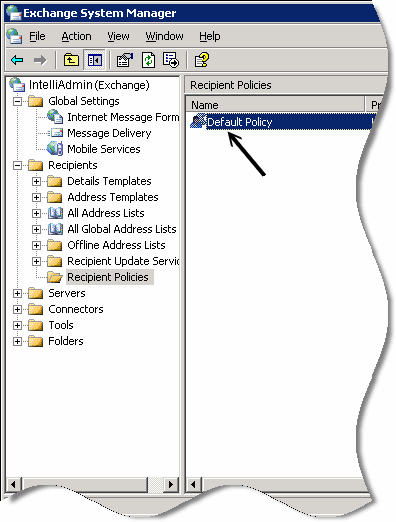
Open the Exchange System Manager, and drill down to the “Recipient Policies” under Recipients. See the default policy on the right. Double click on it
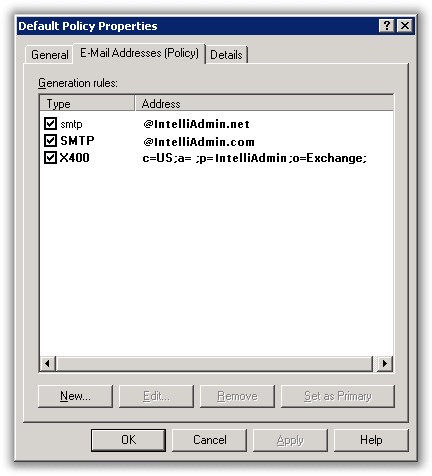
The default policy properties page will open. Move to the “E-Mail Addresses (Policy)” tab. You will see the current list of domains. We want to add a new domain…so click on “New”
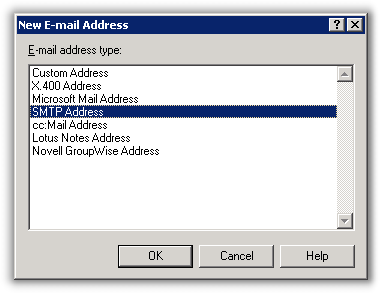
A list of options will be shown. Since we want a new internet email address we want to pick ‘SMTP’ as our option
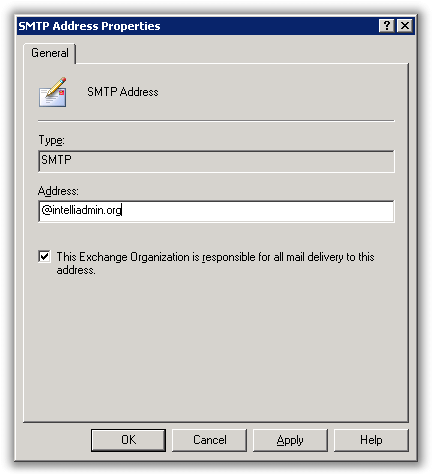
Now simply enter the name of the new domain with the @ sign in front of it.
Click OK. You may notice that the newly added domain is *not* checked. Check it and click Apply. You will be prompted with this message
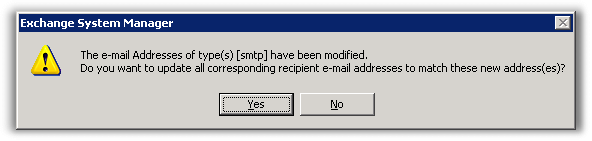
Click yes to apply the new domain to all user accounts.
Now you can receive mail at the new domain. Just make sure you setup your DNS records so outside mail servers know where to send the mail.
One more thing…Subscribe to my newsletter and get 11 free network administrator tools, plus a 30 page user guide so you can get the most out of them. Click Here to get your free tools
{ 8 comments… read them below or add one }
Thank you for making something so simple.
That’s very good but how do you setup the DNS on godaddy.com registra?
Great tech note…straight forward and easy to follow!!
Wanted to add the note that “you can leave the box unchecked”.
This allows you to control propagation of the new domain across the whole organization.
For example if you are a parent company and acquire another business or domain you may choose to only add the new domain to specific accounts. Of course that will require manual entry of those specific accounts. This will help keep your system more pristine when only a few users actually need the new domain SMTP address.
Thanks very much, It’s a good step by step for beginers like me 🙂
What about the 2nd part of this? How do you setup Outlook to send as the new (2nd) domain?
or is this just so obvious I can’t see it?
🙂
d.
Hey Dave…
Outlook will use (by default) whatever is “set as primary” on this screen. So, if you want a specific email address to be used when sending, come to this screen and set it as primary for that account.
Hope that Helps,
Scott Lavelle
Technical Resource Solutions, LLC
How do you do the opposite of this. I have a domain in exchange I want to remove and did using the reverse of this but it still doesn’t want to leave this server. I transferred the domain I want to remove to Google apps.