
If you don’t know what I mean by “Auto complete” it is the feature in Outlook that finishes what you are typing. For example, when I am about to type out an address in the “To” field of an email it will show me a list of matches as I type:
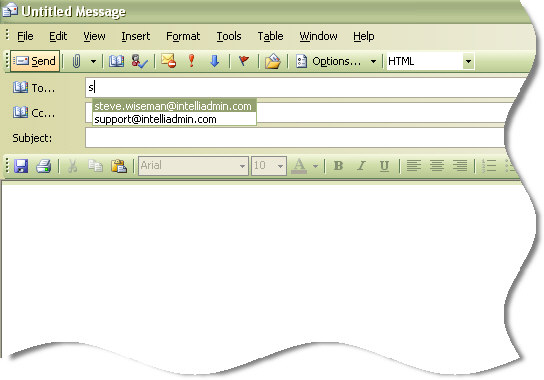
Unfortuantely these addresses are not saved on the server – even when you are only using exchange as your primary email source. Why is this bad? Because a large number of users consider their auto complete an official address book.
It is surprising the number of times I have completed an upgrade of a network and suddenly get calls that all of the address books are missing. This is after I have painstakingly exported all of the old address books and moved them over properly. When I sit down with the user to see what they mean…it is simply the auto-complete that is no longer working for them.
This happened so much that I needed to find an way to backup and restore this data. After running the filemon utility from Sysinternals I discovered that outlook stores this data in a single file
The file is placed in the users profile folder under “Application Data\Microsoft\Outlook”, and always has the extension .NK2. The name of the file matches the outlook profile name.
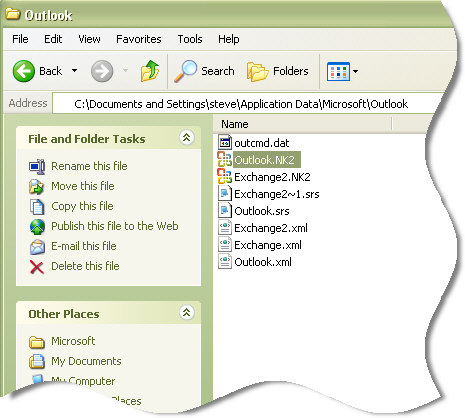
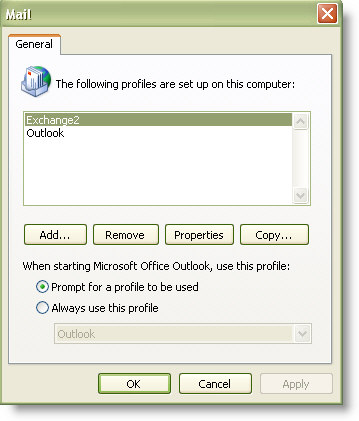
So we can see in the above folder listing that there are a few files in this folder. We are interested in the NK2 files. Notice that there are only two. If we open up our outlook profiles in the control panel we can see that they match up to their respective names:
The trick to the restore is to make sure Outlook is closed, copy over the old NK2 file, and replace the current NK2 with the one with all of the data in it.
So lets imagine we are moving to a new machine. The old machine has an Outlook profile named Exchange. We find Exchange.nk2, copy it over to this machine.
Now we have Exchange.NK2 from the old computer. It contains all of our autocomplete data. We need Outlook to see this. We determine the name of the current profile on the new machine. In this case it is “Outlook”. If we drill down to the users current NK2 folder we find an Outlook.NK2.
Make sure Outlook is closed. Delete Outlook.NK2, and copy in Exchange.NK2 and rename it Outlook.NK2. Now when you launch Outlook it will use the restored autocomplete data when typing out email addresses.
Keep in mind that this procedure is mildly complicated and it is easy to make a mistake. A few things to note about this process:
-Please make sure you backup all of your NK2 files before making any changes.
-A New profile will not have a corresponding NK2 file until you have opened Outlook once and typed out an email address at least once for the current profile.
-If there have been multiple profiles in the past with the same name then a new NK2 file will be created each time. Outlook handles this by adding a number to the end. This means you may find systems where the profile is named “Exchange”, and there are NK2 files named Exchange.NK2, Exchange-2.NK2, and Exchange-3.NK2. You need to do a little investigative work to find the right one. Look at the date and time stamp to see what has the most recent update.
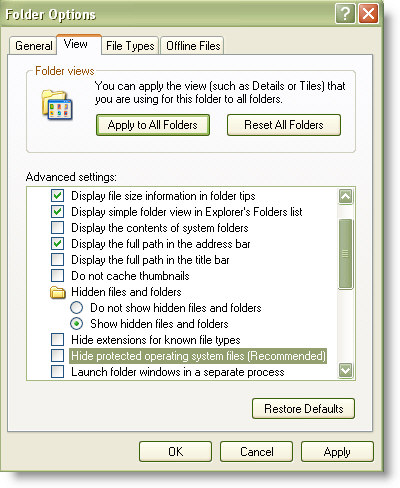
Finally you need to make sure you can view hidden files and folders if you want to drill down to that folder where the NK2 files are located. This can be done by opening any folder in windows, click on the tools menu, then options…scroll down and make sure the option is selected to “Show Hidden Files and Folders”
Now if we can convince users to actually use their address book…then everything would be perfect 🙂
One more thing…Subscribe to my newsletter and get 11 free network administrator tools, plus a 30 page user guide so you can get the most out of them. Click Here to get your free tools
{ 15 comments… read them below or add one }
Thanks Steve. very good write-up and I was able to put this to good use. Cheers.
thanks steve.. easy to understand..
Hi Steve,
I went to the MS site and followed instructions on how to reset the autocomplete function since Outlook was no longer autocompleting my email addresses. Changed the name from outlook.nk2 to profile name.bak and then to profilename.bak as suggested by another MS site, but neither worked. Then tried to change file name from profilename.bak back to Outlook.NK2 but system wouldn’t allow it, so renamed it Outlook1.NK2. I now realize that I was attempting to restore my lost autocomplete address, not to reset it for the future. Doing a search of *.nk2 files I found four, Outlook.nk2 (0 KB), Outlook1.nk2 (892KB) and 2 Microsoft Outlook Internet Settings.NK2 (21KB and 31KB-from 2007; something in file name about store use since I purchased this Sony computer as a display model from Sam’s several years ago). Never had trouble in the past years using this, but a recent power failure (21 hours), although had a UPS which only had 30 minutes or so back-up time, but was not home at the time of electric failure has now caused? for all by prior email addresses not to appear in the autocomplete manner. Yes, should have used an address book. Didn’t find any Exchange.NK2 files. Any suggestions? Thanks Alicia
I would try this utility:
http://www.nirsoft.net/utils/outlook_nk2_autocomplete.html
It may help you recover those auto-complete contacts.
Thanks Steve… really appreciate the clarity and helpfulness.
Thanks steve, i found the solution which are searching for very long time. the important update you gave is the .nk2 file will be created only after the new email try to send by the user.
Hi guys, i have just upgraded to office 2010 and i don’t know where to find the .nk2 file, i think location or structure is changed, anyone can help with this
Hi. There is no .NK2 file in my Outlook folder. Any ideas?
Thanks so much!
Katie:
Near the top of your explorer search window you should see a menu for Tools.
Choose Tools/Folder Options/View.
You want to uncheck the box “Hide extensions for known file types”, then apply to all folders.
If NK2 files still are not visable, then make certain the “show hidden files and Folders” option is selected in the same Tools/Folder Options/View.
If you are in Windows7, the NK2 files are located in C:\Users\(username)\AppData\Roaming\Microsoft\Outlook
very use tips thanks of lot dear
Another great tool is Lookeen Backup Manager. I’ve lost all my emails in march and since the I have this Outlook backup tool! Awesome! http://www.outlook-backup.com/en
Yes I would love to have the filemon program you use to backup Auto Complete names. I need it desparately.
Hello Jack,
This might be what you are looking for
http://www.nirsoft.net/utils/outlook_nk2_autocomplete.html
There is only one word for this.
BRILL.
Thanks
David
I could not get this to work for the life of me. The problem was that the user I was logged in as WAS NOT A LOCAL ADMINISTRATOR!
Once you type in the outlook.exe /importnk2, in Win 7 be sure to right click and run the command as an administrator or else it will not work if the user is not a local admin!