
There is always one application…yes one application that you use all the time, and can’t afford to have it down for one minute during the day.
This same application is buggy and always has problems if it keeps running day after day. You need to reboot once in a while. Yes, and this means you need to stay late and wait until everyone leaves…and then reboot.
There is a simple solution to the problem…the shutdown command in windows 2003. It can shutdown or reboot your system from the command line, and will even allow you to specify reason codes for the shutdown. Here is the lowdown on its possible options:
Usage: shutdown [-i | -l | -s | -r | -a] [-f] [-m \\computername] [-t xx] [-c “comment”] [-d up:xx:yy]
No args Display this message (same as -?)
-i Display GUI interface, must be the first option
-l Log off (cannot be used with -m option)
-s Shutdown the computer
-r Shutdown and restart the computer
-a Abort a system shutdown
-m \\computername Remote computer to shutdown/restart/abort
-t xx Set timeout for shutdown to xx seconds
-c “comment” Shutdown comment (maximum of 127 characters)
-f Forces running applications to close without warning
-d [u][p]:xx:yy The reason code for the shutdown
u is the user code
p is a planned shutdown code
xx is the major reason code (positive integer less than 256)
yy is the minor reason code (positive integer less than 65536)
So, if I wanted to shutdown the machine at a specified time I could create a script with the following:
shutdown -r -f -c “Shutdown to refresh buggy program”
The -f makes sure no application can keep the shutdown from happening, and the -c allows me to add a comment in the event log. The -r tells it to reboot.
Now I have saved this as RebootDaily.bat (Under the windows folder)
Lets schedule it to run daily at 3am. Open the control panel and double click on the “Scheduled Tasks”, and browse for the batch file that we just saved.
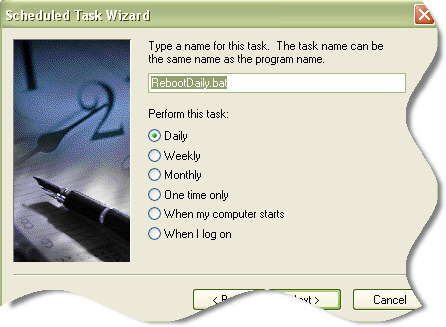
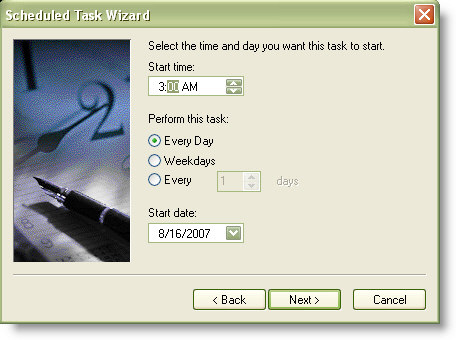
Click next, and set the time you want the reboot to start. If you have any backup jobs I would make sure the job time is far from your reboot.
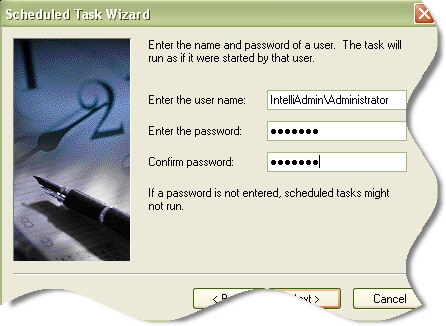
Click next and set the user account that will be used for the reboot. I suggest setting up a separate account with specific permissions for this task. That way you can slightly relax your password change policy – and lock it down so it can’t do much but reboot the system. Otherwise you will need to make sure you update this task each time the administrator password is changed.
Click next, and then finish. Your reboot has been scheduled. Just makes sure it works by manually running it once.
Now your buggy application can get a fresh start every day.
One more thing…Subscribe to my newsletter and get 11 free network administrator tools, plus a 30 page user guide so you can get the most out of them. Click Here to get your free tools
{ 6 comments… read them below or add one }
I tried exactly the steps you laid out for an automatic server reboot. The script runs but the server doesn’t shut down. Am I missing something?
I second that, the script ran for a second and that was it. I have remote logged into the machine which I intend to shutdown. Could you please help?
This does not work because of incorrect syntax. Duh….
use this –
shutdown /r /f /c “Shutdown to refresh buggy program”
This worked perfectly for me. It’s interesting that it’s so similiar to the UNIX shutdown command too.
The script works fine as is.
Once saved, right-click and select Edit, if the quotes are not there, manually put them back where they belong.
Copying and pasting, can result in unexpected behavior 🙂
To get this to work I just shortened the script.
shutdown -r -f