
I received many positive responses from my blog article about setting the default font in Microsoft Word. I received this question from a reader:
Thanks for all the intelliAdmin posts – I enjoy your blog and find it very helpful. I have a question specifically about your post about setting the default Word font. Do you have any similar things for Excel? It seems to be a lot more difficult to do for some reason.
I knew this was possible, but I have not done it for quite some time. After doing some research I discovered this can be accomplished by creating a Book.xlt file.
It is not as elegant as the Normal.dot in Microsoft Word, since it works system wide, and you cannot have different default settings for different users (If you know a way please let me know)
Lets say I have a specific font I want all new Excel documents to use. Simply open Excel, and create a new document. Set the default font.

Any changes you make to this workbook will become the default after we are done. So set it up exactly how you would like a new workbook to look.
When you are finished, click on file and then Save As…
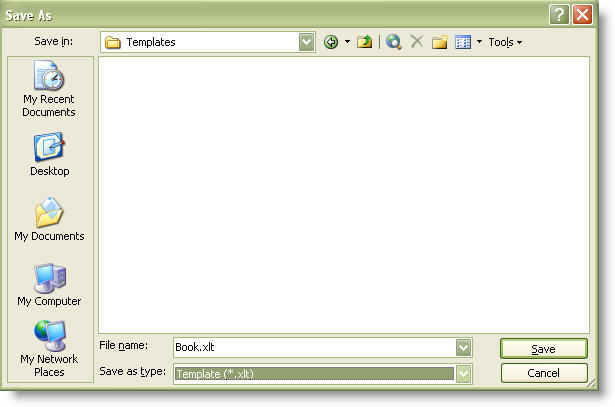
Change the “Save as type” to Template(*.xlt)
Change the name to Book.xlt
Save it in this folder:
C:\Program Files\Microsoft Office\Office11\XLStart
(Side note – I have not tested it, but I would imagine other versions of Excel support this. You would simply need to change Office11 to Office12 for Excel 2007)
Save the file, and close Excel.
Now when you open Excel it has the default settings – just as you saved them.
This can be a simple update to deploy across your network. You could create a Book.xlt, and have it copy to the local XLStart folder on login.
One more thing…Subscribe to my newsletter and get 11 free network administrator tools, plus a 30 page user guide so you can get the most out of them. Click Here to get your free tools