
I recently received a question from a reader:
Hi Steve,
I recently read your article about changing the default save location for MS Outlook 2003 at http://www.intelliadmin.com/blog/index.php/2007/09/set-default-folder-for-attachments-in-outlook-2003/
It is very informative; however, it was almost what I was looking for. I would like to change the default OPEN location, so I was wondering if you know how that would be accomplished.
Very good question. It could be useful to have Outlook open to the folder of your choice when clicking on the attachment button – especially if you send lots of them every day.
The default option is that it opens to the documents folder:
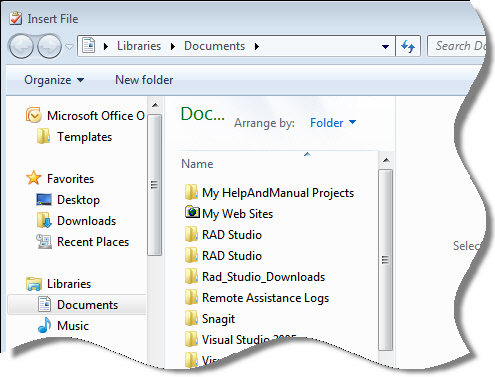
The bummer is that after lots of research, I have come to the conclusion that the only way to change this is to change the location of your “My Documents” folder
You can change the folder location by right clicking it on your desktop, and going to properties. Or you can dig into the registry down to this key:
HKEY_CURRENT_USER\Software\Microsoft\Windows\CurrentVersion\Explorer\User Shell Folders
Find the “Personal” value, and change it to your folder of choice. From that point on Outlook will default to that folder when you go to attach a file. The side effect of this is that it changes the location of your “My Documents” folder – so this is a trade off you will need to consider.
That is the only way I know to change it. If anyone else has a better method, please email me (support@intelliadmin.com) or drop a line in the comments.
One more thing…Subscribe to my newsletter and get 11 free network administrator tools, plus a 30 page user guide so you can get the most out of them. Click Here to get your free tools
{ 3 comments… read them below or add one }
The default OPEN location has nothing to do with Outlook, but WORD, first of all make sure you have Word as your default editor for email messages (Open Outlook then click on TOOLS -> OPTIONS -> MAIL FORMAT and check the USE MICROSOFT OFFICE 2003 TO EDIT EMAIL MESSAGES box).
Then open Word and click on TOOLS -> OPTIONS -> FILE LOCATIONS, you’ll see the default is MY DOCUMENTS, click on MODIFY, select the location you want and you’re done.
Now, when you create a new email and click on the ATTACH button it will open the folder you selected.
Update a small setting in the registry. When not using Word as your e-mail editor (which I don’t) then the registry change will do it.
Open the registry, navigate to the HKEY_CURRENT_USER\Software\Microsoft\Office\11.0\Outlook\Options folder, then right-click in the right-hand pane, and choose New>String Value. Name the value “DefaultPath” and enter the location, including drive letter, which you would like to be the default. Restart Outlook, and voila.
If you’re using Word as your editor, then use the above information. For additional information, visit this article from the MS Office Help site:
http://office.microsoft.com/en-us/outlook/HA011265401033.aspx?pid=CL100626971033
Thanks Ivan and Rob,
Worked a treat.
I am using Word as default editor and changed default path and all is happy now.. 🙂