
It is not as simple as it sounds. You have Exchange, and want forward to an outside email address.
With some other email servers, there is a one line entry where you can add an external account. Not so with Exchange.
Lets me walk you through it.
First, you need to create a contact. You do this by getting on your domain controller. Open up Active Directory Users and Computers
Go to the place where you want to create the contact, right click and select new contact
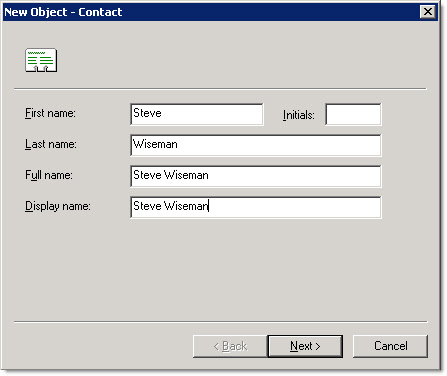
Click Next, and see that empty email address with the button next to it?
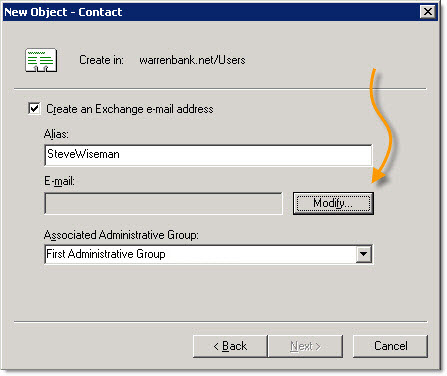
Click on it, and pick the SMTP address option
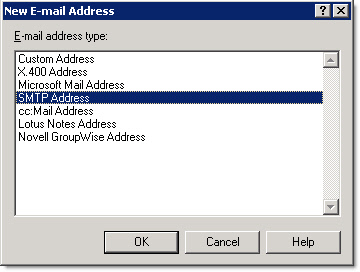
Click OK, and you can enter the external address you want to forward the mail to.
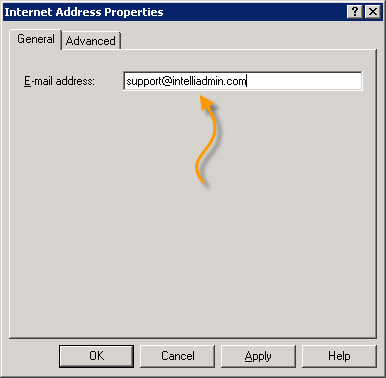
Click OK. Now you have your contact. What Next?
It depends on what you want to do. If you want to simply forward email for an existing user…simply go to the properties of that user and get to the “Exchange General” tab.
If you want to forward email via an internal account, then create a dummy user account and create a mailbox for it. Then go to the “Exchange General” section of the properties of that user.
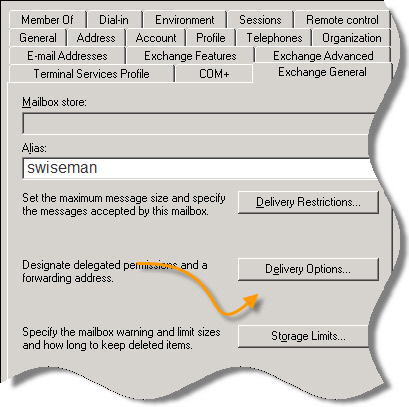
Click on the delivery options button.
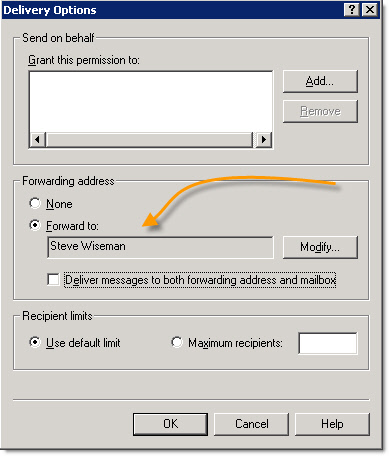
See the middle part, click the modify button and select the contact you created earlier. If you want email to go to the external account, and the local exchange user, make sure you check the option that says “Deliver Messages to both…”
Now. Click OK on all the boxes. Does it work yet? No. You need to wait a few minutes before Exchange will process all the changes. Keep that in mind when testing – or you might pull all your hair out.
One more thing…Subscribe to my newsletter and get 11 free network administrator tools, plus a 30 page user guide so you can get the most out of them. Click Here to get your free tools
{ 1 comment… read it below or add one }
thanks