
I have been seeing this message on and off with attachments for some time now in outlook:
Can’t Create file: VoiceMessage.wav. Right-Click the folder you want to create the file in, and then click properties on the shortcut menu to check your permissions for the folder
In this case it was a voicemail. Sometimes it is a PDF file, other times it is a BMP. The only connection I started to notice was the name of the file.
After some research I discovered that Outlook saves every single attachment you download – in a temp folder. If the same file name exists, it simply appends a number like this:
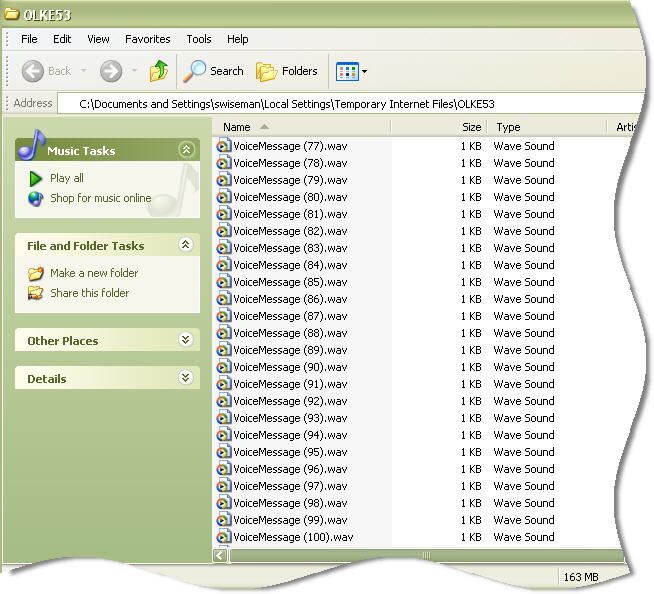
The only problem is that it gets stuck at 100. Once you have had 100 attachments with the same name you get the error message I described.
The trick is finding *where* outlook is storing all of this.
Update August, 2010 – We just created a utility that will clean up this folder for you. Look for the Outlook Cleanup Tool in our downloads section.
For more information about the download, visit this page
Microsoft decided that they would create a random folder name to keep viruses and maleware from finding this folder and exploiting it to their advantage.
The folder path can be found under this key:
HKEY_CURRENT_USER\Software\Microsoft\Office\11.0\Outlook\Security
See the variable on the right named “OutlookSecureTempFolder” – That is your path
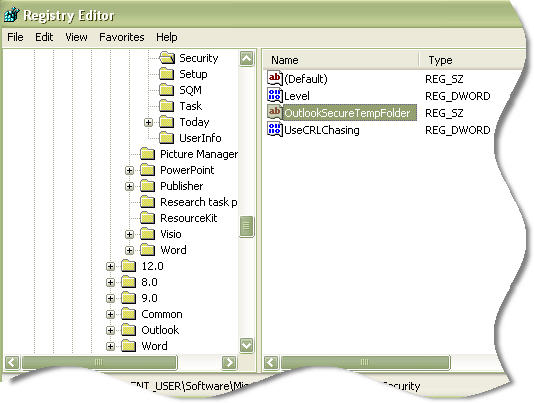
Now that you know where the files are you can simply clear them out from time to time, and the error will go away.
Still, I am a little irritated that this problem has not been fixed by know in a service pack, or a patch. Hopefully Outlook 2007 does not have the same issue.
One more thing…Subscribe to my newsletter and get 11 free network administrator tools, plus a 30 page user guide so you can get the most out of them. Click Here to get your free tools
{ 3 trackbacks }
{ 37 comments… read them below or add one }
← Previous Comments
Hallelujah!!!!! Mystery solved – problem fixed. Thank you!!!
Two of us found this solution the same day. Amazing! Thanks for explaining this so clearly!
Thank you, thank you, thank you!! Very easy to follow instructions and it worked!
do this
rename the path to c:\outlooktemp
then put this in your startup so it erases your outlook temp files
erase /f /q c:\outlooktemp\*.*
cheerio.
Thank you so much, it is really works, problem has resolved now, Wonderfull
Waqar Arif
I tried to access that path but the file was not found there? Anyplace else it would be located?
Magic, problem solved – thanks! Note none of the file paths listed here were where my temp internet/email files are kept but a quick search of the problem file located the folder. Thanks again!
That worked perfect for me. Thanks
Outlook 2007 & 2010 still have this issue.
THANK YOU SO MUCH!!! It worked Great.
Thank you so much for the clear explanation and documentation (screenshots).
MICROSOFT SHOULD HIRE THIS GUY!
It is amazing how we can have all sorts of effort put into changing the way Outlook works on every release but critical errors like this which are completely sloopy work in the first place remain as issue. Try explaining the above instructions to a typical user! Arrr at least Microsoft is good at keeping us IT people in jobs.
Does anyone know if there is a similiar Trick for Outlook Web Access? I get the same problem but I cannot find the registry key for OWA.
Thanks, I got the solution.
We had this problem today and your information helped us to solve the problem. Thank you very much!
Thank you for your clear explanation and solution. My employer doesn’t allow us to download your fix, but at least I know what the issue is. I also can’t hit the temp file from “My Computer” (much less run regedit), but I opened another file and did Save As to find the folder, and spent about 20 minutes deleting the temp files one by one. Crude, but it got the job done. Thanks again! This error was making me crazy!!
Thanks for the Outlook Cleanup Tool! Very handy for limited users w/o registry access. If you ever do any updates to it, it would be extremely helpful to also include a “browse” button to open the folder in Explorer — I often get the request where someone “lost” an attachment because they edited it in Outlook, then deleted the email, and the file can often still be found in this folder.
Issue happened at a client’s this morning. Came across this post in a few minutes…
Worked like a charm.
Tried this solution because it totally made sense to what was in the post – the user couldn’t open Scanned documents from their MFP – likely because it kept creating “Document(1).pdf, Document(2).pdf, Document(3).pdf”
Protip – make sure you run RegEdt32 under the actual user’s profile 🙂
My problem was different in that it said to check for permissions. when I did that it said I had read only rights to the disk. all-so there was no OLKEnnn directory off of the temporaryInternetFiles in the that direcory like the hkey stated. Changing permissions fixed the problem.
Hi. This also helped me and I thank you!! for that Is there a permanent fix for this? Or can we increase the maximun number to greater that 100?
I’ve had this problem on our network and solved it by right clicking on the user folder ie c:/users/Jon Doe , Left click on properties, and uncheck the “read only” box, apply to all sub folders. Solved the issue on our network.
Let’s all Thank Microsoft for being stupid. This error still occurs in Office 2010. Some folder Hidding (Temporary Internet files)
Hey guys!
Well, I solved the same problem, but mine was different, outllok not open. Htm files, just running Ccleaner software or other cleaning useless files created by the system, garbage, any other cleaner would also serve as the problem is related to the folder that stores temporary files, and she filled it was not for anything else.
Thanks all!
This worked like a charm! Thank you so much. I will be signing up for your newsletter.
Thank you! I can’t get my tech support to call me back, so I found you via google…cleanup tool worked great!
Thank you! It works, problem solved, I’m not stressed anymore 🙂
Special thanks to Mr.Sam.T as he directed me to this page at the first place.
Great article!
wow!!!!!!!! after a long time, i was able to solve my problems, tank you very much!!!!!!!!!
Thanks much for posting this!
Hi i’m unable to find the free outlook clean up tool on your download page. can you please help? thanks!
Looks like the download page was broken for IE. It has been fixed.
Here is the direct link:
http://www.intelliadmin.com/OutlookCleanup.exe
firstly clear folder items inside following path
C:\Documents and Settings\%user%\Local Settings\Temporary Internet Files\Content.Outlook
You can also put this in a script, so you don’t have to look it up in the registry. This will open Explorer directly at this location (in Win7)
@echo OFF
setlocal ENABLEEXTENSIONS
set KEY_NAME=”HKEY_CURRENT_USER\Software\Microsoft\Office\14.0\Outlook\security”
set VALUE_NAME=OutlookSecureTempFolder
FOR /F “tokens=2*” %%A IN (‘REG.exe query “%KEY_NAME%” /v “%VALUE_NAME%”‘) DO (set pOutlookSecureTempFolder=%%B)
explorer.exe %pOutlookSecureTempFolder%
Only 5 words, Sir you are a genius! Your write up is spot on! We were able to resolve our issue.
Thanks a lot for your clearly explain
Hi there,
from what I’ve seen so far the folder always resides under %localappdata%\Microsoft\Windows\Temporary Internet Files\ and the folder name always begins with “OLK”. So in most cases it should be possible to get hold of it with a few lines in a batchfile, not invlving the registry:
@echo off
%homedrive%
cd “%localappdata%\Microsoft\Windows\Temporary Internet Files\OLK*\”
set temp_fld=%cd%
cd \
del “%temp_fld%\*.*”
Cheers — Markus
Hi,
I’m having this same exact issue except my VB application is automating Outlook to send the emails out( no control over deleting them manually), with same attachment file name, and the limit for outlook 2010 seems to be in this case 200, instead of 99 in your case. Any permanent solutions,workarounds would be appreciated.