
I got my shiny new copy of Windows 7 today from MSDN. It became available to MSDN subscribers earlier this week.
If you have access then give it a spin, there are some excellent improvements over Vista.
I installed it today to test some of our software. One issue, that is also in Vista, is that file and printer sharing and the $admin share are disabled out of the box.
This is fine for your computer at home. You don’t want this turned on unless you absolutely need to.
In a corporate environment it is used quite a bit by the likes of Backup Exec, the distribution tool for Kaspersky antivirus, the remote execute tool PSExec from SysInternals, and last but not least our admin tools heavily rely on the admin share too.
The simple fact is if you need to push software remotely, you are going to need access to the $admin share.
This special share is automatically created when Windows is installed, but it is not available unless file and printer sharing is turned on.
Like I said before, this is disabled by default in Windows 7, and unfortunately Microsoft has yet again changed the method to turn it back on. The steps you need to take are now different than the ones you took in Vista.
How do you get it back up and running in Windows 7?
Start by going into the control panel.
Click on “Network and Internet”
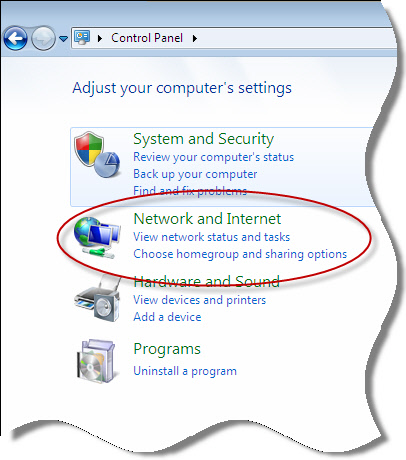
Then click on “Network and Sharing Center”
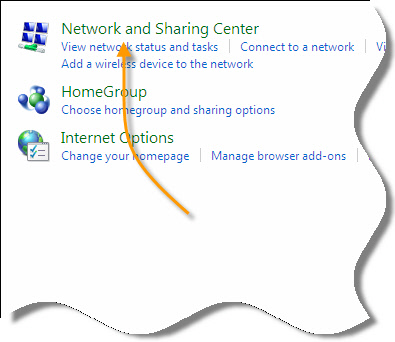
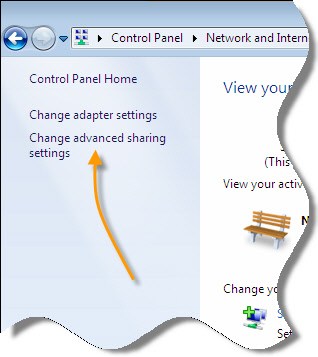
A new window will be displayed. Look on the left side.
See the item that says “Change Advanced Sharing Settings” – Click on it.
Now you are shown different profiles.
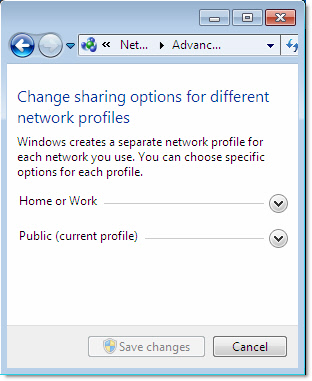
The list can change depending on how your system is configured. Windows 7 will determine automatically what profile your network card is using. You may want to enable file and printer sharing on all of them, or limit it to the “Home or Work” profile for higher security.
Expand the profile you want to modify, and scroll down until you see “File and Printer Sharing”
Click on “Turn on file and printer sharing”
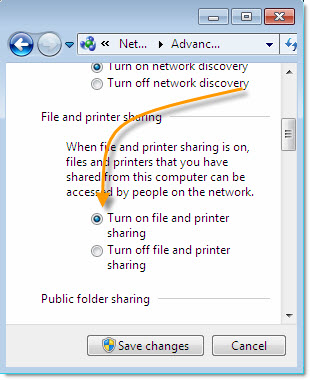
Save your changes.
I wish I could say that is all you need to do, but unfortunately you also need to make a registry change.
Open regedit, and drill down to this key:
HKEY_LOCAL_MACHINE\Software\Microsoft\Windows\CurrentVersion\Policies\System
Under this key you will need to create a new DWORD value called:
LocalAccountTokenFilterPolicy
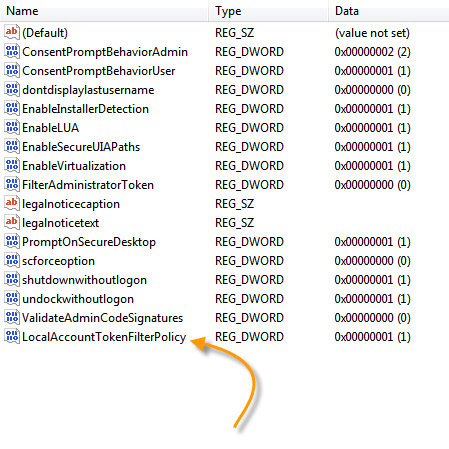
Set it to 1, and reboot.
Now you can access the $admin share on your Windows 7 machine.
One more thing…Subscribe to my newsletter and get 11 free network administrator tools, plus a 30 page user guide so you can get the most out of them. Click Here to get your free tools
{ 21 comments… read them below or add one }
For Windows 7 64-bit versions does one use a new DWORD (32-bit) Value or the QWORD (64bit) Value?
You would still use the 32 bit value. This does not change in the 64 bit version of windows.
Reboot was not required in my case.
Excellent advise – worked first time!
Thanks.
Good god you saved me a lot of time. This was driving me crazy! Thanks!
Thank you so much, PSexec now works remote cmd prompt remote install etc.
Thank you soooo much. I’ve been stuck on this for countless hours and finally google helped me get here. I knew it was a policy thing but Network Security: LAN Manager authentication level didn’t fix it. Thanks again!
Hi, This also gave me th c$ share that I was looking for
This still does not work for me. I use psexec to run a batch script that creates couple of folders under C: and then copy files from a shared folder to the local drive on the remote machine. I am running the install on to a remote machine with -u and -c options when running the batch file with psexec. Please advise. I follwed the above steps and still cannot figure out why the install does not work.
u rock man, saved me alot of problems when installing kav….
very nice man!! saved a lot of trouble installing/administering systems remotely
Glad it helped. It took me a while to figure it out myself 🙂
Steve, Thanks for the info.
I have tried this on several systems and some work fine and some do not.
Let me give some information. Have several 100 systems in a domain enviroment (2003). Some systems XP and some Win 7 – The XP systems have no issues with Admin C$ in the domain – The Win 7’s are the weird ones – we used the registry fix to create the the LocalAccountTokenFilterPolicy – some of them it worked right away with/without reboot. Admins has access to the whole drive even the documents&settings local settings folder.
We have a few systems that will absolutely not work – All these systems were built by Dell. We require them to have at least Win7 Professional or Ultimate –
My question to you is – Does this work on certain versions (Service Packs) or certain versions of Windows 7
I don’t think there is a difference between service pack versions. Where the difference comes in is when the machine is first attached to the Network. Windows will ask you if it is a home, work, or public network. Depending on which one is picked will change firewall, and the token registry value
Is it possible to make this change for Win 7 system through Group Policy?
Yes, I think this article will walk you through it:
http://www.intelliadmin.com/index.php/2008/12/enable-file-and-printer-sharing-using-group-policy-2/
One thing it wont do is start remote registry and set it to automatic…you will still need to find other ways to do this.
You can accomplish this with our free tool, Network Administrator:
http://www.intelliadmin.com/index.php/network-administrator/
You are THE MAN. The registry key was what I needed to add.
Will the trial work? So far it has not.
Although it claims it has.
Do I need to purchase and register?
“Success”,”RTIWSLELM028″,”Starting…”
“Success”,”RTIWSLELM028″,”Operation completed successfully”
“Success”,”RTIWSLELM028″,”Operation completed successfully”
“Success”,”RTIWSLELM028″,”Operation completed successfully”
“Success”,”RTIWSLELM028″,”Operation completed successfully”
“Success”,”RTIWSLELM028″,”Operation completed successfully”
Sorry it’s the IE Automatic Install Blocker I’m trying to push to RTIWSLELM028.
Hi,
How are you determining that it failed?
Thanks,
Steve
Is there a way to do this directly from the command line on that remote machine?