
When I first came across Windows 2008 Core, I was happy. Finally, a version of windows you could chisel down to just the base components that you needed.
Microsoft did such a good job – that it is hard to configure it with the default settings 🙂
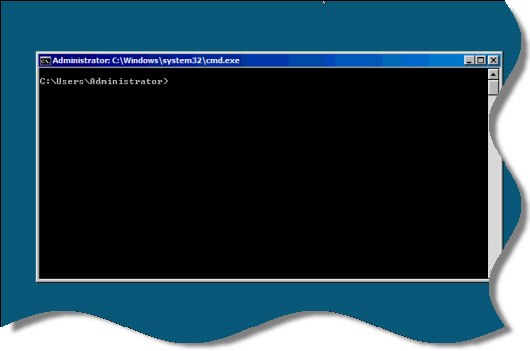
No graphical tools are provided (Well there are a few…but not many). When you logon, you are welcomed with a command line window that sits in the middle of the screen:
The frustration level increases exponentially when you want to get something done.
For security reasons, remote administration is disabled by default. Remote Administration – not to be confused with Remote Desktop is the file and printer sharing component that allows you to remotely use computer management, event viewer, service manager, or third party tools like our Network Administrator
To remove the firewall restrictions that block its use, simply type this at the command line:
netsh advfirewall firewall set rule group="Remote Administration" new enable=yes
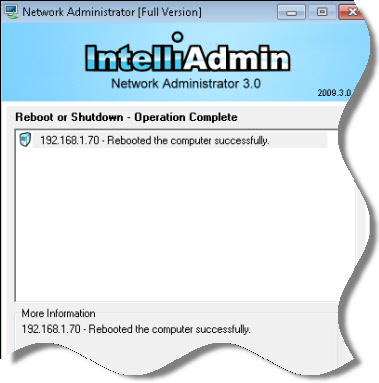
After that command, some remote services will work. For example, you can remotely reboot or shutdown the machine using Network Administrator
But…if you want to manage services, add/remove/edit users using computer management, or look at the event log remotely…you will still get access denied messages.
You need to tell Core 2008 what users are allowed to connect. You can do this by typing this at the command line:
cmdkey /add:ServerName /user:UserName /pass:password
Where ServerName is the name of the local server, and the username and password are for an administrator account.
That is all there is to it. After those two commands you can remotely manage your 2008 core server with ease.
One more thing…Subscribe to my newsletter and get 11 free network administrator tools, plus a 30 page user guide so you can get the most out of them. Click Here to get your free tools