

A friend of mine forgot his password for his Windows 7 computer, and needed to get back into it. I remembered years ago when I was working as a contractor, there was a little Linux utility that would allow you to boot from a floppy and reset windows passwords
Lucky for him, that utility is still around, and it has been updated to work with Windows 7, and Windows 2008.
It is called the “Offline NT Password & Registry Editor”
The website can be found here:
http://pogostick.net/~pnh/ntpasswd/
First, if you are going to use this utility, a word of warning. If a user has EFS encrypted files, and you reset their password, those files will become junk and you will never be able to open them again.
To reset passwords, download the latest zip from the website above, and open it up. There will be an ISO file that you can burn to a CD.
Boot to it, and you will see all kinds of commands scream across the screen. Then you need to answer some questions.
First, it will ask which drive your Windows install is on. You can see the drives and the selection numbers here:
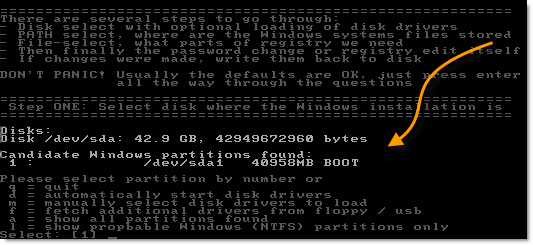
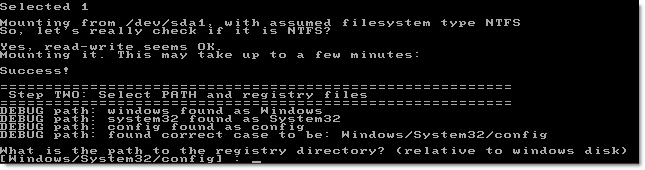
Then it will ask you for the registry location. Just pick the default by pressing enter:
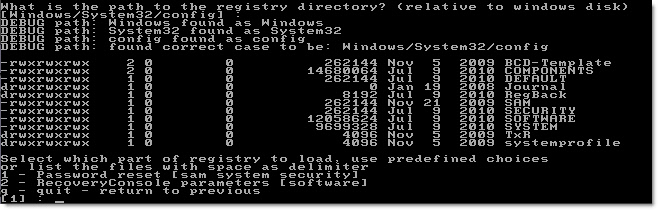
Now that it has all the info it needs, you select your action. We want to reset a password – so we pick the default by pressing enter (Password Reset)
And finally, what we have been looking for – editing the user data. Notice it has a registry editor too. Something that can come in handy with other issues. So pick the first option by pressing enter:
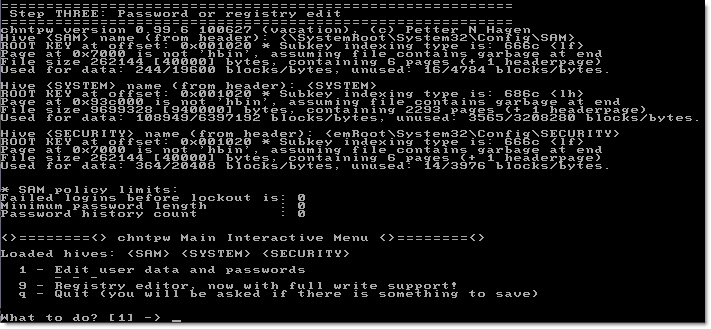
Then pick the user account you want to edit (Usually you can just hit enter here too – since administrator is usually the default)
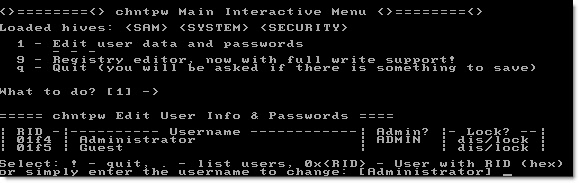
OK. Here is where you need to stop and pay attention. Every option so far has been the default, and you could select it by hitting enter. If you don’t watch carefully…the final option that you want (clearing the password) is *not* selected by default. Quit is.
I am not the brightest bulb in the bunch, and I ran through it a few times by just hitting enter all the way through…and then tried to get in with no password. Grrr Not working. Until I slowed down and read each step, I realized my mistake.
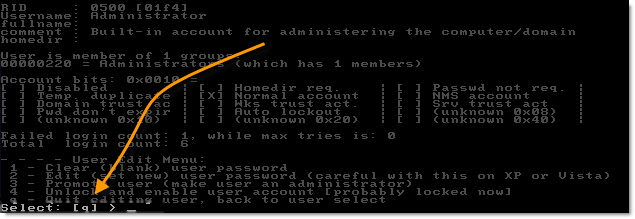
Pick the clear password option. Option 1. Avoid the temptation to reset the password, and set to a new value. Many times this does not work. Just clear it, login with an empty password, and then you can reset once you are back in windows.
Notice too that you can elevate, and unlock accounts – comes in handy when users forget their password, and lock themselves out.
Can’t tell you how many times this little gem helped me look like a hero back in my contracting days. Glad to see it is still alive and kicking.
One more thing…Subscribe to my newsletter and get 11 free network administrator tools, plus a 30 page user guide so you can get the most out of them. Click Here to get your free tools
{ 1 comment… read it below or add one }
pretty kool stuff man… ty