

This week we have a question from Vladimir:
“Hello Steve,
Happy New year to you and all the best in the new 2012.
I’m battling here with fragmentation disk problems and I’m wondering;
Is there a way to run a defragmentation process during night hours when all machines are idling? Can it be scripted so you can add it to a scheduler task?”
Yes…we could just go through the manual steps of creating this scheduled task, but Vladimir wants to know if we can easily script it.
The answer is a definite yes. In fact, it is easier to script this than to suffer through all of the windows and settings of the task scheduler.
To add a scheduled task, you just need to call it like this from the command line:
schtasks /create
Now, of course that needs some more options.
We want it to run only when the computer is idle, and since we want it to run after hours, we want to rule out lunch…so lets tell it to only run after two hours of inactivity.
Here are the options we will need:
/tr  = The path to the application to run

/tn = The name of the task

/ru = User to run the task as

/sc = When to run the task

/i = The number of idle minutes to wait
This is what our command to add the task would look like:
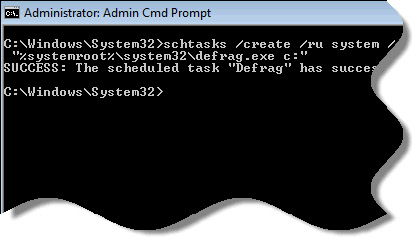
schtasks /create /ru system /sc onidle /i 120 /tn Defrag /tr "%systemroot%\system32\defrag.exe c:"
This command line can be translated to:
Create a task named ‘Defrag’ that will run the defrag program under the system account – only when the computer has been idle for 120 minutes
After you run the task, it will add it:
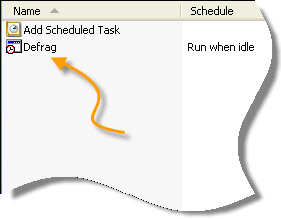
You can verify by browsing over to scheduled tasks:
That is all there is to it. Now when the system is idle for more than two hours, it will start a defrag of the c drive. This syntax works on Windows XP through Windows 7 / 2008.
One more thing…Subscribe to my newsletter and get 11 free network administrator tools, plus a 30 page user guide so you can get the most out of them. Click Here to get your free tools
{ 11 comments… read them below or add one }
Great script steve. Had no idea that the task scheduler has/had a ONIDLE option!
Thanks again for the great tips
Hi Steve,
Does this work with Windows 2000?
Hello Jennifer,
I am not sure. Right now I do not have any available 2000 machines to test on.
Thanks for the tip steve. Got a few users that always want me to defrag even if they don’t need it! Unfortunately they are in the executive area of the company (If you get my drift). It is funny. I will defrag and the report will tell me zero fragmentation but the user will claim huge performance improvement after the fact.
I will implement this script and let them know I no longer need to do it manually 😉
Biggest problem I’ve come across with any defragger is how the on-access AV interacts with it. You really need to set up a batch file which turns off any on-access AV service, defrags the system, and re-starts the AV service.
Thanks for the post Angus. Very good point
Interesting article. We tend to use shutdown scripts to turn our computers off at night, saving electricity. However there are other periods of time where this could be useful to us. I assume it can be adapted to 3rd party defraggers with command switches that take up less time?
Thanks again
Hello Xeo,
Should work fine with 3rd party defraggers as well. Just need to change the command line to point to your defrag program.
Thanks for the cool tip. What would a line look like to be able to defrag the pagefile Steve?
I don’t think this can be automated. As far as I know the only way to do this is to create a new page file, and allow the old one to be deleted…or use this program from MS:
http://technet.microsoft.com/en-us/sysinternals/bb897426.aspx
Still…the above program requires a reboot into a type of safe mode where it will defrag your page file
Thanks for the command line