
I have quite a few scripts that are run by task scheduler on my server. One of the ways I track the results is by writing to a text file in a common share. After a while this can become a little ridiculous to follow.
Recently I discovered that it is possible to create your own Application, or System events from a script that will show up in the Windows event viewer.
To create your own events, you need to use the “eventcreate” command line argument. This command line program is available in Windows XP, 2003, Vista, and Windows 7 – unfortunately not in Windows 2000.
How can you use it?
Let me take a simple example, and then I will walk you through writing an event to the log. In one of my scripts I have an xcopy that I check for errors:
@echo off
xcopy c:\temp c:\temp2 /y /i /c
if ERRORLEVEL 5 GOTO ERROR
if ERRORLEVEL 4 GOTO ERROR
if ERRORLEVEL 1 GOTO ERROR
REM SUCCESS
goto exit
:ERROR
REM FAILURE
:EXIT
The above script looks for the different error codes that XCOPY can return – right now we won’t concentrate on that. What we want to do is add our EventCreate command right around where we have our “REM FAILURE”
There are a few details we need to collect together before we can call our command. First we want to determine which event log we want to write.
For our example I want to pick the “Application” log
Then, we need to determine an event source. The event source specifies the text that will be shown as the source in the log. The trick is you need to pick something unique that won’t have a name conflict with Windows, or other scripts. This means don’t pick DNS, VSS, or W32Time – or any common windows service name. At the same time, no spaces, and keep it short.
I picked XCOPYRESLT
Next we need to pick an event type. Our choices are Information, Warning, or Error. In the case of my example, I am only going to report errors so the obvious pick is “Error”.
What else? Well an event ID is needed. This is an arbitrary number that you may pick to suite your own custom needs. 1000 sounds good to me.
And finally, a description. “Domain Controller XCOPY Failure” seems like an easy description.
Now, lets bring it all together at the command line:
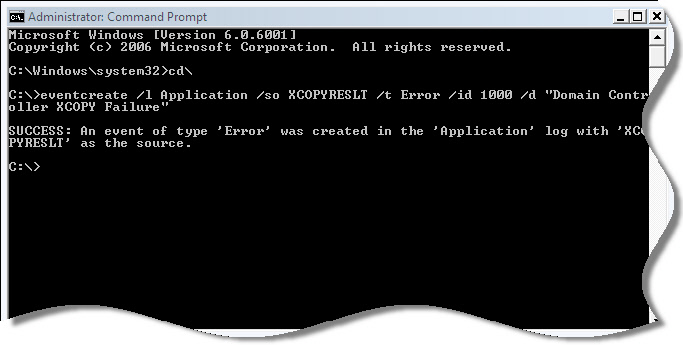
eventcreate /l Application /so XCOPYRESLT /t Error /id 1000 /d “Domain Controller XCOPY Failure”
One run at the prompt:
Now, if we take a peek at the event log:
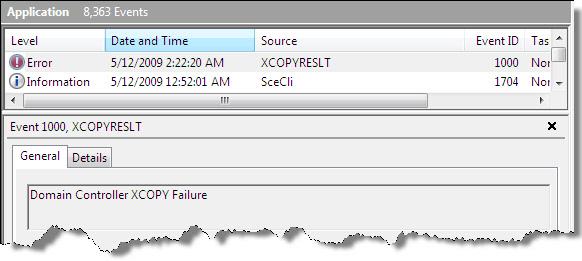
So there you go. Custom event log items right from your batch file. For more detailed information on the eventcreate command, visit this section on Microsoft Technet.
One more thing…Subscribe to my newsletter and get 11 free network administrator tools, plus a 30 page user guide so you can get the most out of them. Click Here to get your free tools
{ 1 comment… read it below or add one }
This is really good.
Thanks!
Darren